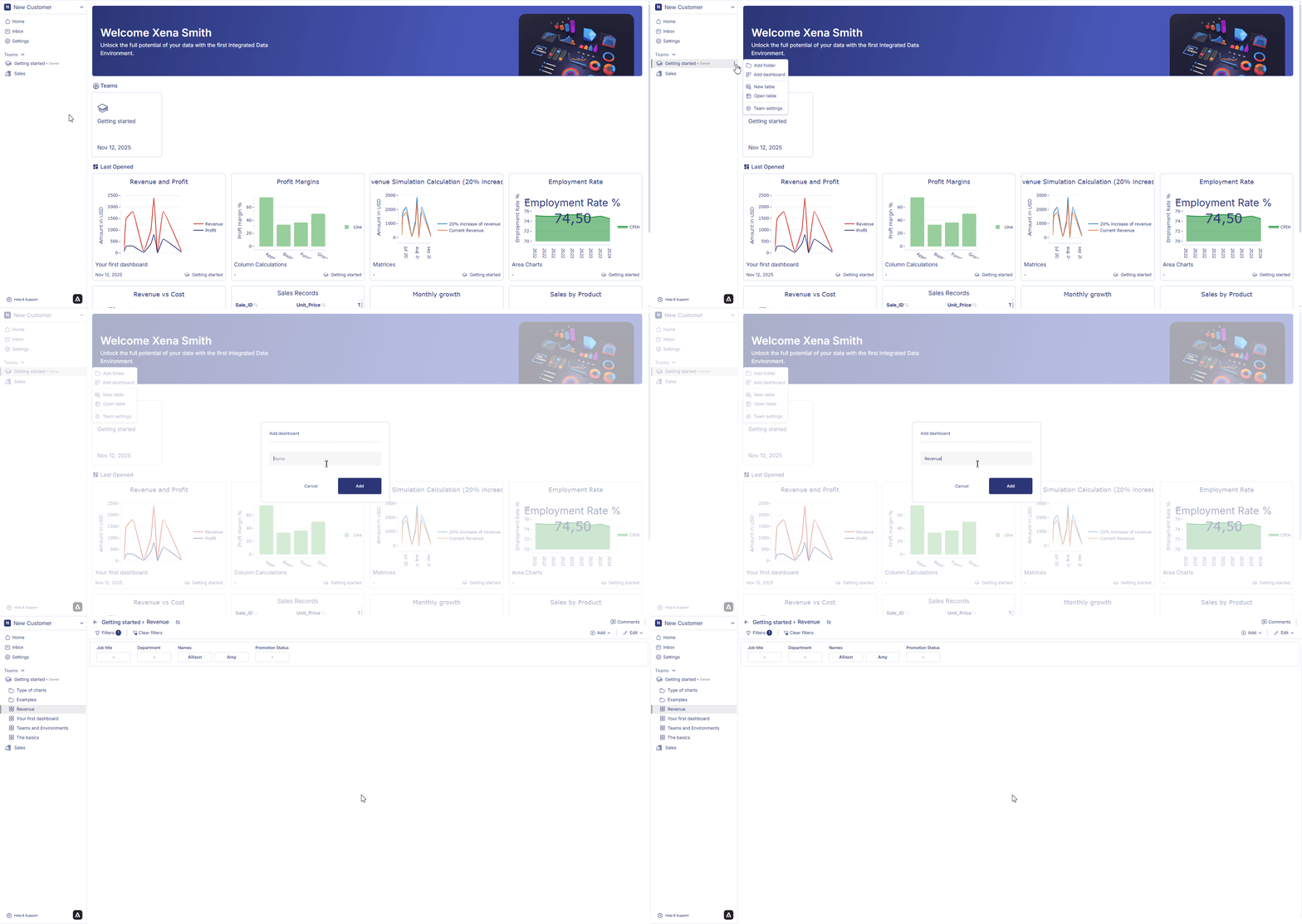
Now that you have created a team it is time to create your first graph. In this page we will walk you through how you can create your first graph.Graphs are dispalyed on a dashboard. In order to create a graph first we need to create a dashboard. You can either create a dashboard under a team from the teams environment or in your personal environment.
From the homepage, hoever over the team name where you want to create the dashboard, **⋮** will appear. Click on **⋮** an option menu will appear. Click on the option add dashboard to create your dashboard. A pop up will appear. Give a name to your dashboard. Click on add button. A dashboard will be added under that team.
Creating graphs in Anlytic platform is very easy and simple. Follow the following steps to create your first graph.
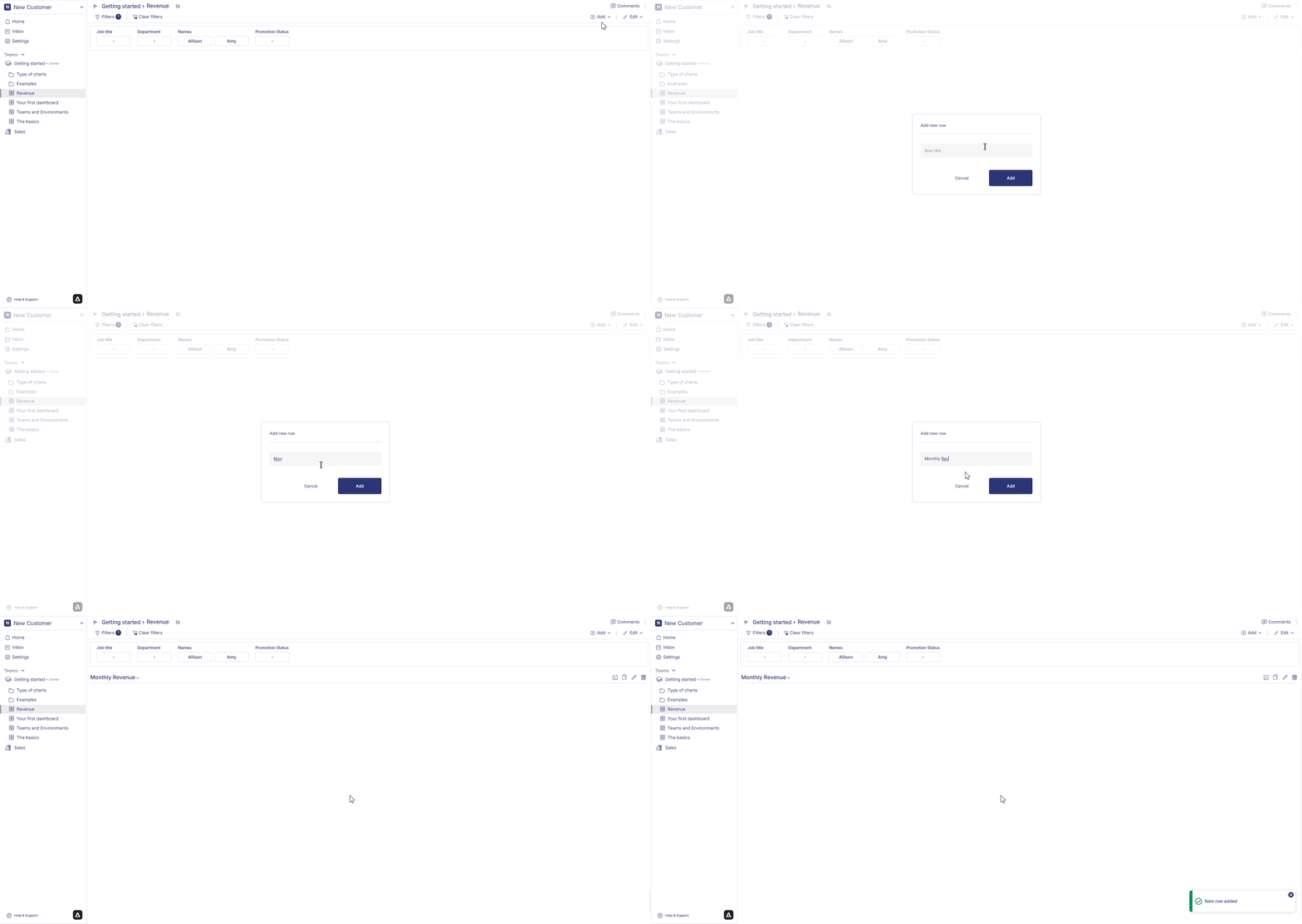
Select a dashboard from the sidebar by clicking on the name of the dashboard. Click on the dropdown menu on the top right hand corner of the workspace to change the mode of the dashboard. You can choose between view and edit, and presentation mode. Click on edit. Click on add row from the top right hand corner of the dashboard. An input menu will appear,enter a title to your row. Click on add. A row will be added in the dashboard.
Click on add visualization container from the right hand side of the row line. Choose data visualization and click on create. Choose chart type.
Choose datafrom the catalog by double clicking on the column name.
For a line chart, add a line by clicking on the + icon. Drag and drop the selected column from Selection container to the axis and data placeholder.
Give a title to your chart and add description about your chart. Add X and Y axis title from details section. Click on Create visualization to save the visualization. Your visualization will be saved and displayed on the dashboard.
Congratulations! You have created your first graph. Read our dashboard and chart section to know more about chart features and dashboard features.
Last modified on March 6, 2026
{"docsConfig":{"theme":"mint","$schema":"https://mintlify.com/docs.json","name":"Anlytic","description":"Anlytic documentation — learn how to automate repetitive tasks, orchestrate workflows, and turn live data into real-time decisions with Anlytic's AI Command Centre.","colors":{"primary":"#4F46E5","light":"#6366F1","dark":"#241F25"},"logo":{"light":"https://mintcdn.com/anlytic/7zxtUS5LOlfk3lqE/logo/light.svg?fit=max\u0026auto=format\u0026n=7zxtUS5LOlfk3lqE\u0026q=85\u0026s=588e58390d10c78a6ec09c383fd45aa6","dark":"https://mintcdn.com/anlytic/7zxtUS5LOlfk3lqE/logo/dark.svg?fit=max\u0026auto=format\u0026n=7zxtUS5LOlfk3lqE\u0026q=85\u0026s=1ccef14307a9950814bc5600c20ad74f","href":"/"},"favicon":"https://mintcdn.com/anlytic/T7s_z2AFw8U-IjQ-/favicon.png?fit=max\u0026auto=format\u0026n=T7s_z2AFw8U-IjQ-\u0026q=85\u0026s=7c5e748d6ac3203bc9a499ec7bc5f593","api":{"openapi":"api-reference/openapi.yaml","playground":{"display":"none"},"examples":{"defaults":"required","prefill":true}},"appearance":{"default":"system"},"background":{"decoration":"gradient"},"navbar":{"links":[{"href":"https://www.anlytic.com/book-a-demo","label":"Book a Demo"},{"href":"https://anlytic.com/articles","label":"Articles"},{"href":"https://anlytic.com/pricing","label":"Pricing"}],"primary":{"type":"button","label":"Go to app","href":"https://app.anlytic.com"}},"footer":{"socials":{"website":"https://anlytic.com","linkedin":"https://www.linkedin.com/company/anlytic"},"links":[{"header":"Product","items":[{"label":"Dashboards","href":"https://anlytic.com/dashboards-feature"},{"label":"Automated Workflows","href":"https://anlytic.com/automated-workflows-feature"},{"label":"Data Organisation","href":"https://anlytic.com/data-organisation-features"},{"label":"Pricing","href":"https://anlytic.com/pricing"}]},{"header":"Resources","items":[{"label":"Articles","href":"https://anlytic.com/articles"},{"label":"Book a Demo","href":"https://anlytic.com/book-a-demo"},{"label":"Get Started","href":"https://anlytic.com/get-started"}]},{"header":"Legal","items":[{"label":"Terms of Service","href":"https://anlytic.com/terms-of-service"},{"label":"Privacy Policy","href":"https://anlytic.com/privacy-policy"},{"label":"Cookie Policy","href":"https://anlytic.com/cookie-policy"}]}]},"search":{"prompt":"Search Anlytic docs..."},"seo":{"metatags":{"canonical":"https://docs.anlytic.com"}},"fonts":{"heading":{"family":"Inter","weight":700},"body":{"family":"Inter","weight":400}},"styling":{"eyebrows":"breadcrumbs","codeblocks":{"theme":{"light":"github-light","dark":"dracula"}},"latex":false},"errors":{"404":{"redirect":false,"title":"Page not found","description":"The page you're looking for doesn't exist or has been moved. [Return to docs](/)."}},"contextual":{"options":["copy","view","chatgpt","claude"],"display":"header"},"thumbnails":{"appearance":"dark"},"metadata":{"timestamp":true},"navigation":{"global":{},"languages":[{"language":"en","default":true,"href":""},{"language":"nl","href":"nl"}]}},"deployment":{"deploymentMetadataValue":{"subdomain":"anlytic","hasAudioNarration":false,"actualSubdomain":"anlytic","customDomains":["docs.anlytic.com"],"gitSource":{"type":"github","owner":"anlytic","repo":"docs","deployBranch":"main","contentDirectory":"","isPrivate":true,"mountPath":"","label":""},"chroma":{"liveDeploymentHistoryId":"6a82f1bb5abb23d8d7c5d1e9","collectionId":"1e379965-3e44-4eb3-8fa0-6b3193de12fe","schemaVersion":"v3","latestBuiltDeploymentHistoryId":"6a82f1bb5abb23d8d7c5d1e9"},"entitlements":{"AI_CHAT":{"status":"DISABLED"},"REMOVE_BRANDING":{"status":"DISABLED"},"CONTEXTUAL_FEEDBACK":{"status":"DISABLED"},"CODE_SNIPPET_FEEDBACK":{"status":"DISABLED"}},"buildId":"6a82f1bb5abb23d8d7c5d1e9:success","clientVersion":"0.0.3908","searchFilterCounts":[{"language":"en","tag":"Function reference","count":151},{"language":"nl","tag":"Functiereferentie","count":151},{"language":"en","tag":"API Reference","count":142},{"language":"nl","tag":"API-referentie","count":142},{"language":"en","tag":"Docs","count":42},{"language":"nl","tag":"Documentatie","count":42},{"language":"en","tag":"Math Functions","count":39},{"language":"nl","tag":"Wiskundige functies","count":39},{"language":"en","tag":"Aggregate Functions","count":33},{"language":"nl","tag":"Aggregatiefuncties","count":33},{"language":"en","tag":"Window Functions","count":29},{"language":"nl","tag":"Vensterfuncties","count":29},{"language":"en","tag":"Date Functions","count":26},{"language":"nl","tag":"Datumfuncties","count":26},{"language":"en","tag":"Filters","count":21},{"language":"nl","tag":"Filters","count":21},{"language":"en","tag":"Charts","count":15},{"language":"nl","tag":"Grafieken","count":15},{"language":"en","tag":"Connectors","count":14},{"language":"nl","tag":"Connectoren","count":14}]},"assistantConfig":{"enableAskAiButton":false,"enableStarterQuestions":false,"enableContextualStarterQuestions":false,"enableAskAiSearchBar":true},"hasChatPermissions":false,"hasWebMcpPermissions":false,"toggles":[{"name":"kill-isr","enabled":true,"variant":{"name":"disabled","enabled":false,"feature_enabled":true},"impressionData":false},{"name":"agent-mintlify-slack","enabled":true,"variant":{"name":"disabled","enabled":false,"feature_enabled":true},"impressionData":false},{"name":"editor-v7-file-tree","enabled":true,"variant":{"name":"disabled","enabled":false,"feature_enabled":true},"impressionData":false},{"name":"agent-integrations-settings","enabled":true,"variant":{"name":"disabled","enabled":false,"feature_enabled":true},"impressionData":false},{"name":"automations-pr-grouping","enabled":true,"variant":{"name":"disabled","enabled":false,"feature_enabled":true},"impressionData":false},{"name":"custom-prefix","enabled":true,"variant":{"name":"disabled","enabled":false,"feature_enabled":true},"impressionData":false},{"name":"analytics-v7","enabled":true,"variant":{"name":"disabled","enabled":false,"feature_enabled":true},"impressionData":false},{"name":"user-flows-analytics","enabled":true,"variant":{"name":"disabled","enabled":false,"feature_enabled":true},"impressionData":false},{"name":"no-publish-flow","enabled":true,"variant":{"name":"disabled","enabled":false,"feature_enabled":true},"impressionData":false},{"name":"workos-onboarding","enabled":true,"variant":{"name":"disabled","enabled":false,"feature_enabled":true},"impressionData":false},{"name":"llms-txt-v2","enabled":true,"variant":{"name":"disabled","enabled":false,"feature_enabled":true},"impressionData":false},{"name":"pause-universal-search-reconcile","enabled":true,"variant":{"name":"disabled","enabled":false,"feature_enabled":true},"impressionData":false},{"name":"snapshot-serving-live","enabled":true,"variant":{"name":"disabled","enabled":false,"feature_enabled":true},"impressionData":false},{"name":"stripTemperatureMiddleware","enabled":true,"variant":{"name":"disabled","enabled":false,"feature_enabled":true},"impressionData":false},{"name":"per-site-search-delta","enabled":true,"variant":{"name":"disabled","enabled":false,"feature_enabled":true},"impressionData":false},{"name":"support-platform-pylon-zendesk","enabled":true,"variant":{"name":"disabled","enabled":false,"feature_enabled":true},"impressionData":false},{"name":"editor-branches-v2-autocommit","enabled":true,"variant":{"name":"disabled","enabled":false,"feature_enabled":true},"impressionData":false},{"name":"editor-branches-v2","enabled":true,"variant":{"name":"disabled","enabled":false,"feature_enabled":true},"impressionData":false},{"name":"snapshot-serving","enabled":true,"variant":{"name":"disabled","enabled":false,"feature_enabled":true},"impressionData":false},{"name":"instant-rollback","enabled":true,"variant":{"name":"disabled","enabled":false,"feature_enabled":true},"impressionData":false},{"name":"granular-notifications-server","enabled":true,"variant":{"name":"disabled","enabled":false,"feature_enabled":true},"impressionData":false},{"name":"granular-notifications","enabled":true,"variant":{"name":"disabled","enabled":false,"feature_enabled":true},"impressionData":false},{"name":"editor-private-page-search","enabled":true,"variant":{"name":"disabled","enabled":false,"feature_enabled":true},"impressionData":false},{"name":"automations-fable","enabled":true,"variant":{"name":"disabled","enabled":false,"feature_enabled":true},"impressionData":false},{"name":"fixed-ai-action-pricing","enabled":true,"variant":{"name":"disabled","enabled":false,"feature_enabled":true},"impressionData":false},{"name":"automation-resolve-merge-conflict","enabled":true,"variant":{"name":"disabled","enabled":false,"feature_enabled":true},"impressionData":false},{"name":"scoped-publishing","enabled":true,"variant":{"name":"disabled","enabled":false,"feature_enabled":true},"impressionData":false},{"name":"mintql","enabled":true,"variant":{"name":"disabled","enabled":false,"feature_enabled":true},"impressionData":false},{"name":"page-level-analytics","enabled":true,"variant":{"name":"disabled","enabled":false,"feature_enabled":true},"impressionData":false},{"name":"teamspace","enabled":true,"variant":{"name":"disabled","enabled":false,"feature_enabled":true},"impressionData":false},{"name":"editor-version-history-v2","enabled":true,"variant":{"name":"disabled","enabled":false,"feature_enabled":true},"impressionData":false},{"name":"vite-origin","enabled":true,"variant":{"name":"disabled","enabled":false,"feature_enabled":true},"impressionData":false},{"name":"editor-nav-generations","enabled":true,"variant":{"name":"disabled","enabled":false,"feature_enabled":true},"impressionData":false},{"name":"billing-page-v2","enabled":true,"variant":{"name":"disabled","enabled":false,"feature_enabled":true},"impressionData":false},{"name":"workspace-projects","enabled":true,"variant":{"name":"disabled","enabled":false,"feature_enabled":true},"impressionData":false},{"name":"assistant-v5","enabled":true,"variant":{"name":"disabled","enabled":false,"feature_enabled":true},"impressionData":false},{"name":"byok-sep-25","enabled":true,"variant":{"name":"disabled","enabled":false,"feature_enabled":true},"impressionData":false},{"name":"fork-pr-previews","enabled":true,"variant":{"name":"disabled","enabled":false,"feature_enabled":true},"impressionData":false},{"name":"revalidation-jwt","enabled":true,"variant":{"name":"disabled","enabled":false,"feature_enabled":true},"impressionData":false},{"name":"editor-agent-model-picker","enabled":true,"variant":{"name":"disabled","enabled":false,"feature_enabled":true},"impressionData":false},{"name":"client-snapshot-docs-config","enabled":true,"variant":{"name":"disabled","enabled":false,"feature_enabled":true},"impressionData":false},{"name":"hobby-abuse-scan","enabled":true,"variant":{"name":"disabled","enabled":false,"feature_enabled":true},"impressionData":false},{"name":"dashboard-inbox","enabled":true,"variant":{"name":"disabled","enabled":false,"feature_enabled":true},"impressionData":false}],"isAtlas":false,"googleFontsInlined":false},"customCss":[{"filePath":"style.css","content":"html.dark[data-current-path*=\"/api-reference/\"] #header pre{background-color:#282a36!important}@media (min-width:640px){html[data-current-path^=\"/nl/api-reference/\"] #page-title{font-size:1.75rem;line-height:2.125rem}}"}],"page":{"pagePath":"quickstart/first-dashboard","slug":"/quickstart/first-dashboard","pageMetadata":{"title":"Build your first dashboard","description":null,"href":"/quickstart/first-dashboard"},"pageType":"default","mdx":{"mdxSource":{"compiledSource":"\"use strict\";const{Fragment:_Fragment,jsx:_jsx,jsxs:_jsxs}=arguments[0];const{useMDXComponents:_provideComponents}=arguments[0];function _createMdxContent(props){const _components={code:`code`,li:`li`,ol:`ol`,p:`p`,..._provideComponents(),...props.components},{Heading,OptimizedImage}=_components;if(!Heading)_missingMdxReference(`Heading`,true);if(!OptimizedImage)_missingMdxReference(`OptimizedImage`,true);return _jsxs(_Fragment,{children:[_jsx(_components.p,{children:`Now that you have created a team it is time to create your first graph. In this page we will walk you through how you can create your first graph.`}),`\n`,_jsx(_components.p,{children:`Graphs are dispalyed on a dashboard. In order to create a graph first we need to create a dashboard. You can either create a dashboard under a team from the teams environment or in your personal environment.`}),`\n`,_jsx(Heading,{level:`2`,id:`creating-dashboards`,children:`Creating Dashboards`}),`\n`,_jsxs(_components.p,{children:[`From the homepage, hoever over the `,_jsx(_components.code,{children:`team name`}),` where you want to create the dashboard, `,_jsx(_components.code,{children:`**⋮** `}),` will appear. Click on `,_jsx(_components.code,{children:`**⋮** `}),` an option menu will appear. Click on the option `,_jsx(_components.code,{children:`add dashboard`}),` to create your dashboard. A pop up will appear. Give a `,_jsx(_components.code,{children:`name`}),` to your dashboard. Click on `,_jsx(_components.code,{children:`add`}),` button. A dashboard will be added under that team.`]}),`\n`,_jsx(OptimizedImage,{src:`https://mintlify.s3.us-west-1.amazonaws.com/anlytic/Resources/team%20dashboard.gif`,alt:`team dashboard`}),`\n`,_jsx(Heading,{level:`2`,id:`create-your-first-graphs`,children:`Create your first graphs`}),`\n`,_jsx(_components.p,{children:`Creating graphs in Anlytic platform is very easy and simple. Follow the following steps to create your first graph.`}),`\n`,_jsxs(_components.ol,{children:[`\n`,_jsxs(_components.li,{children:[`\n`,_jsxs(_components.p,{children:[`Select a `,_jsx(_components.code,{children:`dashboard`}),` from the sidebar by clicking on the `,_jsx(_components.code,{children:`name`}),` of the dashboard. Click on the `,_jsx(_components.code,{children:`dropdown`}),` menu on the top right hand corner of the workspace to change the `,_jsx(_components.code,{children:`mode`}),` of the dashboard. You can choose between view and edit, and presentation mode. Click on `,_jsx(_components.code,{children:`edit`}),`. Click on `,_jsx(_components.code,{children:`add row`}),` from the top right hand corner of the dashboard. An input menu will appear,enter a `,_jsx(_components.code,{children:`title`}),` to your row. Click on `,_jsx(_components.code,{children:`add`}),`. A row will be added in the dashboard.`]}),`\n`]}),`\n`,_jsxs(_components.li,{children:[`\n`,_jsxs(_components.p,{children:[`Click on `,_jsx(_components.code,{children:`add visualization`}),` container from the right hand side of the row line. Choose `,_jsx(_components.code,{children:`data visualization`}),` and click on `,_jsx(_components.code,{children:`create`}),`. Choose `,_jsx(_components.code,{children:`chart type`}),`.\nChoose `,_jsx(_components.code,{children:`data`}),`from the catalog by double clicking on the `,_jsx(_components.code,{children:`column name`}),`.`]}),`\n`]}),`\n`]}),`\n`,_jsx(OptimizedImage,{src:`https://mintlify.s3.us-west-1.amazonaws.com/anlytic/Resources/create%20first%20graph.gif`,alt:`alt text`}),`\n`,_jsxs(_components.ol,{start:`3`,children:[`\n`,_jsxs(_components.li,{children:[`\n`,_jsxs(_components.p,{children:[`For a line chart, add a line by clicking on the `,_jsx(_components.code,{children:`+ icon`}),`. Drag and drop the selected column from `,_jsx(_components.code,{children:`Selection container`}),` to the `,_jsx(_components.code,{children:`axis`}),` and `,_jsx(_components.code,{children:`data`}),` placeholder.`]}),`\n`]}),`\n`,_jsxs(_components.li,{children:[`\n`,_jsxs(_components.p,{children:[`Give a `,_jsx(_components.code,{children:`title`}),` to your chart and add `,_jsx(_components.code,{children:`description`}),` about your chart. Add X and Y `,_jsx(_components.code,{children:`axis title`}),` from details section. Click on `,_jsx(_components.code,{children:`Create visualization`}),` to save the visualization. Your visualization will be saved and displayed on the dashboard.`]}),`\n`]}),`\n`]}),`\n`,_jsx(_components.p,{children:`Congratulations! You have created your first graph. Read our dashboard and chart section to know more about chart features and dashboard features.`})]})}function MDXContent(props={}){const{wrapper:MDXLayout}={..._provideComponents(),...props.components};return MDXLayout?_jsx(MDXLayout,{...props,children:_jsx(_createMdxContent,{...props})}):_createMdxContent(props)}return{default:MDXContent};function _missingMdxReference(id,component){throw new Error(`Expected `+(component?`component`:`object`)+\" `\"+id+\"` to be defined: you likely forgot to import, pass, or provide it.\")}","frontmatter":{},"scope":{"codeStyling":{"theme":{"light":"github-light","dark":"dracula"}},"config":{},"pageMetadata":{"title":"Build your first dashboard","description":null,"href":"/quickstart/first-dashboard"}}},"mdxSourceWithNoJs":null},"mdxExtracts":{"tableOfContents":[{"title":"Creating Dashboards","slug":"creating-dashboards","depth":2,"children":[]},{"title":"Create your first graphs","slug":"create-your-first-graphs","depth":2,"children":[]}],"codeExamples":{}},"jsLinks":[],"subdomain":"anlytic","siteName":"Anlytic","title":"Build your first dashboard - Anlytic","navMaps":{"firstHrefInVersion":{},"firstHrefInLanguage":{"en":{"href":"/quickstart/first-dashboard","matchLevel":0},"nl":{"href":"/nl/quickstart/first-dashboard","matchLevel":1}}},"lastModified":"2026-08-17T11:34:46.580Z","gitLastModified":"2026-03-06T16:53:23.000Z","originalFileLocation":"quickstart/first-dashboard.mdx","locale":"en"},"headHtml":"\u003cscript data-mint-head>(function(){var d=document.documentElement,p=null;if(!p){try{p=localStorage.getItem(\"isDarkMode\")}catch(e){}if(p==='true')p='dark';else if(p==='false')p='light';if(p!=='light'\u0026\u0026p!=='dark'\u0026\u0026p!=='system')p=\"system\"}var r=p==='system'?(matchMedia(\"(prefers-color-scheme: dark)\").matches?'dark':'light'):p;d.classList.remove(r==='dark'?'light':'dark');d.classList.add(r);d.setAttribute(\"data-theme-preference\",p)})();\u003c/script>\u003cmeta data-mint-head name=\"application-name\" content=\"Anlytic\">\u003cmeta data-mint-head name=\"generator\" content=\"Mintlify\">\u003clink data-mint-head rel=\"icon\" type=\"image/png\" sizes=\"192x192\" href=\"/mintlify-assets/_mintlify/favicons/anlytic/OGVuNM7y96UUGKog/_generated/favicon/android-chrome-192x192.png\" media=\"(prefers-color-scheme: light)\">\u003clink data-mint-head rel=\"apple-touch-icon\" type=\"image/png\" sizes=\"180x180\" href=\"/mintlify-assets/_mintlify/favicons/anlytic/OGVuNM7y96UUGKog/_generated/favicon/apple-touch-icon.png\">\u003clink data-mint-head rel=\"icon\" type=\"image/png\" sizes=\"16x16\" href=\"/mintlify-assets/_mintlify/favicons/anlytic/OGVuNM7y96UUGKog/_generated/favicon/favicon-16x16.png\" media=\"(prefers-color-scheme: light)\">\u003clink data-mint-head rel=\"icon\" type=\"image/png\" sizes=\"32x32\" href=\"/mintlify-assets/_mintlify/favicons/anlytic/OGVuNM7y96UUGKog/_generated/favicon/favicon-32x32.png\" media=\"(prefers-color-scheme: light)\">\u003clink data-mint-head rel=\"shortcut icon\" type=\"image/x-icon\" href=\"/mintlify-assets/_mintlify/favicons/anlytic/OGVuNM7y96UUGKog/_generated/favicon/favicon.ico\" media=\"(prefers-color-scheme: light)\">\u003clink data-mint-head rel=\"icon\" type=\"image/png\" sizes=\"192x192\" href=\"/mintlify-assets/_mintlify/favicons/anlytic/OGVuNM7y96UUGKog/_generated/favicon-dark/android-chrome-192x192.png\" media=\"(prefers-color-scheme: dark)\">\u003clink data-mint-head rel=\"icon\" type=\"image/png\" sizes=\"16x16\" href=\"/mintlify-assets/_mintlify/favicons/anlytic/OGVuNM7y96UUGKog/_generated/favicon-dark/favicon-16x16.png\" media=\"(prefers-color-scheme: dark)\">\u003clink data-mint-head rel=\"icon\" type=\"image/png\" sizes=\"32x32\" href=\"/mintlify-assets/_mintlify/favicons/anlytic/OGVuNM7y96UUGKog/_generated/favicon-dark/favicon-32x32.png\" media=\"(prefers-color-scheme: dark)\">\u003clink data-mint-head rel=\"shortcut icon\" type=\"image/x-icon\" href=\"/mintlify-assets/_mintlify/favicons/anlytic/OGVuNM7y96UUGKog/_generated/favicon-dark/favicon.ico\" media=\"(prefers-color-scheme: dark)\">\u003cmeta data-mint-head property=\"og:title\" content=\"Build your first dashboard - Anlytic\">\u003cmeta data-mint-head property=\"og:site_name\" content=\"Anlytic\">\u003cmeta data-mint-head property=\"og:url\" content=\"https://docs.anlytic.com/quickstart/first-dashboard\">\u003cmeta data-mint-head property=\"og:type\" content=\"website\">\u003cmeta data-mint-head name=\"twitter:card\" content=\"summary_large_image\">\u003cmeta data-mint-head name=\"twitter:title\" content=\"Build your first dashboard - Anlytic\">\u003cmeta data-mint-head name=\"msapplication-config\" content=\"/mintlify-assets/_mintlify/favicons/anlytic/OGVuNM7y96UUGKog/_generated/favicon/browserconfig.xml\">\u003cmeta data-mint-head name=\"apple-mobile-web-app-title\" content=\"Anlytic\">\u003cmeta data-mint-head name=\"msapplication-TileColor\" content=\"#4F46E5\">\u003clink data-mint-head rel=\"canonical\" href=\"https://docs.anlytic.com/quickstart/first-dashboard\">\u003clink data-mint-head rel=\"alternate\" type=\"application/xml\" href=\"/sitemap.xml\">\u003clink data-mint-head rel=\"alternate\" type=\"text/markdown\" href=\"/quickstart/first-dashboard.md\">\u003clink data-mint-head rel=\"alternate\" hreflang=\"en\" href=\"https://docs.anlytic.com/quickstart/first-dashboard\">\u003clink data-mint-head rel=\"alternate\" hreflang=\"nl\" href=\"https://docs.anlytic.com/nl/quickstart/first-dashboard\">\u003clink data-mint-head rel=\"alternate\" hreflang=\"x-default\" href=\"https://docs.anlytic.com/quickstart/first-dashboard\">\u003cscript data-mint-head type=\"application/ld+json\">{\"@context\":\"https://schema.org\",\"@graph\":[{\"@type\":\"Organization\",\"@id\":\"https://docs.anlytic.com/#organization\",\"name\":\"Anlytic\",\"url\":\"https://docs.anlytic.com\",\"logo\":{\"@type\":\"ImageObject\",\"url\":\"https://mintcdn.com/anlytic/7zxtUS5LOlfk3lqE/logo/light.svg?fit=max\u0026auto=format\u0026n=7zxtUS5LOlfk3lqE\u0026q=85\u0026s=588e58390d10c78a6ec09c383fd45aa6\"}},{\"@type\":\"WebSite\",\"@id\":\"https://docs.anlytic.com#website\",\"name\":\"Anlytic\",\"url\":\"https://docs.anlytic.com\",\"publisher\":{\"@id\":\"https://docs.anlytic.com/#organization\"}},{\"@type\":\"WebPage\",\"@id\":\"https://docs.anlytic.com/quickstart/first-dashboard#webpage\",\"url\":\"https://docs.anlytic.com/quickstart/first-dashboard\",\"name\":\"Build your first dashboard\",\"dateModified\":\"2026-03-06T16:53:23.000Z\",\"isPartOf\":{\"@id\":\"https://docs.anlytic.com#website\"},\"breadcrumb\":{\"@id\":\"https://docs.anlytic.com/quickstart/first-dashboard#breadcrumb\"}},{\"@type\":\"BreadcrumbList\",\"@id\":\"https://docs.anlytic.com/quickstart/first-dashboard#breadcrumb\",\"itemListElement\":[{\"@type\":\"ListItem\",\"position\":1,\"name\":\"Setup guide\",\"item\":\"https://docs.anlytic.com/quickstart/initial-setup\"},{\"@type\":\"ListItem\",\"position\":2,\"name\":\"Build your first dashboard\",\"item\":\"https://docs.anlytic.com/quickstart/first-dashboard\"}]},{\"@type\":[\"Article\",\"TechArticle\"],\"@id\":\"https://docs.anlytic.com/quickstart/first-dashboard#article\",\"headline\":\"Build your first dashboard\",\"name\":\"Build your first dashboard\",\"url\":\"https://docs.anlytic.com/quickstart/first-dashboard\",\"mainEntityOfPage\":{\"@id\":\"https://docs.anlytic.com/quickstart/first-dashboard#webpage\"},\"dateModified\":\"2026-03-06T16:53:23.000Z\",\"publisher\":{\"@id\":\"https://docs.anlytic.com/#organization\"},\"isPartOf\":{\"@id\":\"https://docs.anlytic.com#website\"}}]}\u003c/script>\u003cscript data-mint-head type=\"application/ld+json\">{\"@context\":\"https://schema.org\",\"@type\":\"WebSite\",\"name\":\"Anlytic\",\"creator\":{\"@type\":\"Organization\",\"name\":\"Mintlify\",\"url\":\"https://mintlify.com\"}}\u003c/script>","siteName":"Anlytic","nav":{"global":{},"languages":[{"language":"en","default":true,"tabs":[{"tab":"Docs","groups":[{"group":"Getting started","pages":[{"title":"Welcome to Anlytic","href":""},{"title":"Platform overview","href":"/quickstart/overview"}]},{"group":"Setup guide","pages":[{"title":"Initial setup","href":"/quickstart/initial-setup"},{"title":"User management","href":"/quickstart/user-management"},{"title":"Connect a data source","href":"/quickstart/connect-data-source"},{"title":"Team configuration","description":null,"href":"/quickstart/team-configuration"},{"title":"Build your first dashboard","href":"/quickstart/first-dashboard"}]},{"group":"Dashboards","pages":[{"title":"Dashboards","description":null,"href":"/dashboards/overview"},{"title":"Building workbooks","href":"/dashboards/workbook"},{"title":"Organizing a dashboard","href":"/dashboards/organize"}]},{"group":"Charts","pages":[{"title":"Charts overview","href":"/dashboards/charts/overview"},{"title":"Line, bar and scatter charts","href":"/dashboards/charts/point"},{"title":"Heatmap","href":"/dashboards/charts/heatmap"},{"title":"Icicle chart","href":"/dashboards/charts/icicle"},{"title":"Headline statistics","href":"/dashboards/charts/headline"},{"title":"Pie chart","href":"/dashboards/charts/piechart"},{"title":"Pivot table","href":"/dashboards/charts/pivottable"},{"title":"Data table","href":"/dashboards/charts/datatable"},{"title":"Geo map","href":"/dashboards/charts/geomap"}]},{"group":"Filters","pages":[{"title":"Workspace filters","href":"/data/filters/create"},{"title":"Dashboard filters","href":"/data/filters/dashboard-filters"},{"title":"Edit filters","href":"/data/filters/edit"},{"title":"Delete filters","href":"/data/filters/delete"}]},{"group":"Functions","pages":[{"title":"Functions overview","href":"/dashboards/functions/overview"},{"title":"Function index","href":"/dashboards/functions/function-index"}]},{"group":"Connectors","pages":[{"title":"Data connectors","href":"/data/connectors/overview"},{"title":"Set up a connection","href":"/data/connectors/create"},{"title":"Error handling","href":"/data/connectors/errors"}]},{"group":"Authentication","pages":[{"title":"Authentication","href":"/auth/overview"},{"title":"System roles","href":"/auth/system-roles"},{"title":"Workspace roles","href":"/auth/workspace-roles"},{"title":"Team roles","href":"/auth/team-roles"}]},{"group":"Catalogs","pages":[{"title":"Data catalogs","href":"/data/catalogs/overview"},{"title":"Create a catalog","href":"/data/catalogs/create"},{"title":"Edit a catalog","href":"/data/catalogs/edit"},{"title":"Multi-catalog support","href":"/data/catalogs/multi-catalog"}]},{"group":"Metadata","pages":[{"title":"Metadata","href":"/data/meta/overview"},{"title":"Add metadata","href":"/data/meta/create"},{"title":"Edit metadata","href":"/data/meta/edit"}]},{"group":"Relationships","pages":[{"title":"Relationships","href":"/data/relationships/overview"},{"title":"Create relationships","href":"/data/relationships/create"},{"title":"Edit relationships","href":"/data/relationships/edit"}]}]},{"tab":"Function reference","pages":[{"title":"Function reference","href":"/dashboards/functions/aggregate/array_agg"}]},{"tab":"API Reference","pages":[{"title":"API Reference","href":"/api-reference/configuration/get-schedule-policy"}]}]},{"language":"nl","pages":[{"title":"nl","href":"/nl/quickstart/first-dashboard"}]}]},"title":"Build your first dashboard - Anlytic","buildId":"dpl_CUnGQP1HgFUzoxatVC37y4zP83Vx","deploymentId":"dpl_CUnGQP1HgFUzoxatVC37y4zP83Vx","dynamics":["a74be98ba7"],"chunks":["zoom-image-lightbox-DQ5W4Q2v.js","PlusIcon-jZ8vgk6R.js","lightbox-handle-r17bVUz3.js"]}