Anlytic allows you to delete a full filter, or delete individual groups and fields inside a filter. This section explains how to remove unwanted filter components and deploy the updated filter configuration.
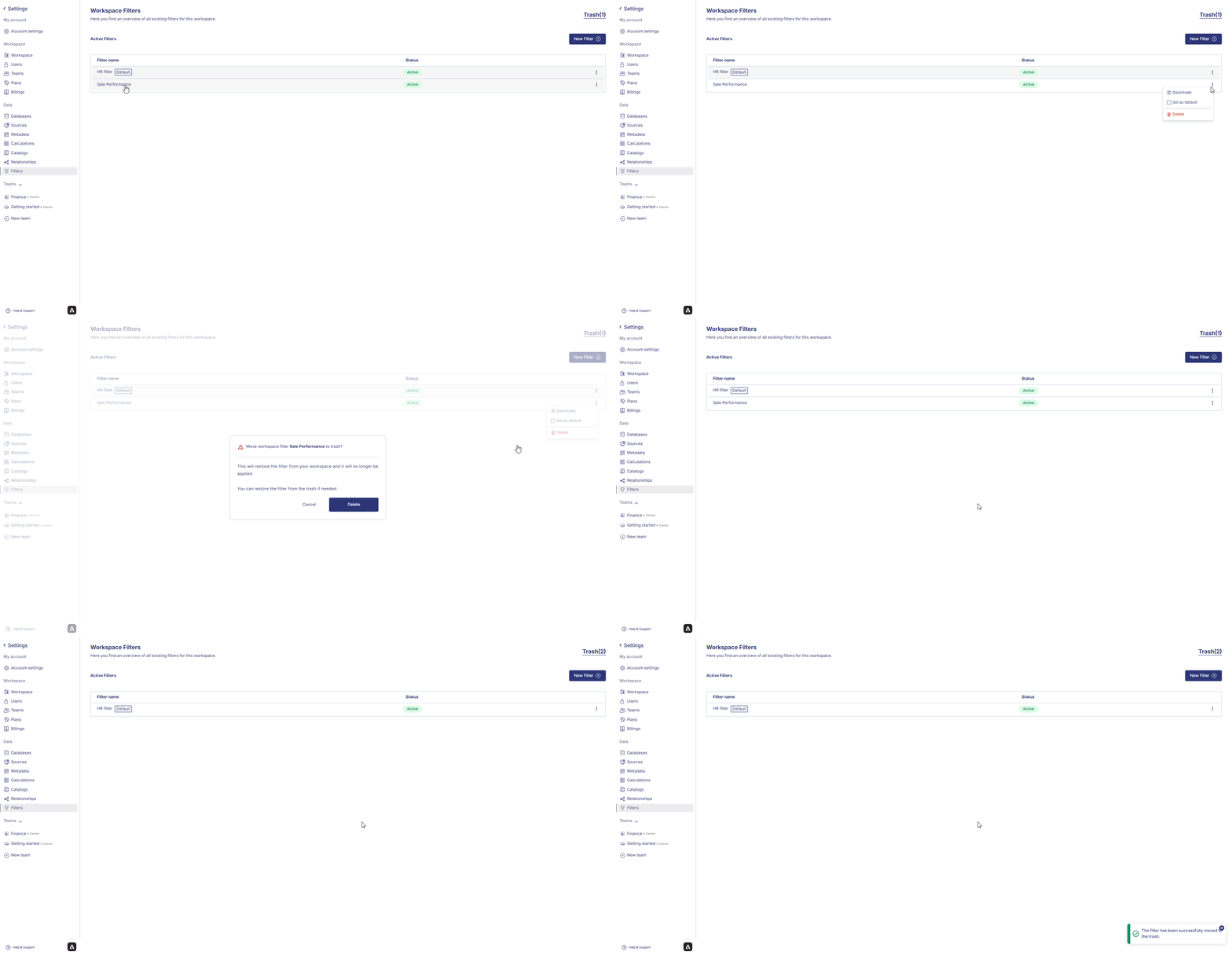
In the list of filters, find the filter you want to delete.
Click the ⋮ (options icon) next to the filter.
Select Delete.
Confirm the deletion in the pop-up dialog.
The filter will be moved to Trash, where it can be restored or permanently removed later.After removing any element inside the filter, click Deploy to finalize changes and update the workspace-level filtering logic.
Last modified on March 6, 2026
{"docsConfig":{"theme":"mint","$schema":"https://mintlify.com/docs.json","name":"Anlytic","description":"Anlytic documentation — learn how to automate repetitive tasks, orchestrate workflows, and turn live data into real-time decisions with Anlytic's AI Command Centre.","colors":{"primary":"#4F46E5","light":"#6366F1","dark":"#241F25"},"logo":{"light":"https://mintcdn.com/anlytic/7zxtUS5LOlfk3lqE/logo/light.svg?fit=max\u0026auto=format\u0026n=7zxtUS5LOlfk3lqE\u0026q=85\u0026s=588e58390d10c78a6ec09c383fd45aa6","dark":"https://mintcdn.com/anlytic/7zxtUS5LOlfk3lqE/logo/dark.svg?fit=max\u0026auto=format\u0026n=7zxtUS5LOlfk3lqE\u0026q=85\u0026s=1ccef14307a9950814bc5600c20ad74f","href":"/"},"favicon":"https://mintcdn.com/anlytic/T7s_z2AFw8U-IjQ-/favicon.png?fit=max\u0026auto=format\u0026n=T7s_z2AFw8U-IjQ-\u0026q=85\u0026s=7c5e748d6ac3203bc9a499ec7bc5f593","api":{"openapi":"api-reference/openapi.yaml","playground":{"display":"none"},"examples":{"defaults":"required","prefill":true}},"appearance":{"default":"system"},"background":{"decoration":"gradient"},"navbar":{"links":[{"href":"https://www.anlytic.com/book-a-demo","label":"Book a Demo"},{"href":"https://anlytic.com/articles","label":"Articles"},{"href":"https://anlytic.com/pricing","label":"Pricing"}],"primary":{"type":"button","label":"Go to app","href":"https://app.anlytic.com"}},"footer":{"socials":{"website":"https://anlytic.com","linkedin":"https://www.linkedin.com/company/anlytic"},"links":[{"header":"Product","items":[{"label":"Dashboards","href":"https://anlytic.com/dashboards-feature"},{"label":"Automated Workflows","href":"https://anlytic.com/automated-workflows-feature"},{"label":"Data Organisation","href":"https://anlytic.com/data-organisation-features"},{"label":"Pricing","href":"https://anlytic.com/pricing"}]},{"header":"Resources","items":[{"label":"Articles","href":"https://anlytic.com/articles"},{"label":"Book a Demo","href":"https://anlytic.com/book-a-demo"},{"label":"Get Started","href":"https://anlytic.com/get-started"}]},{"header":"Legal","items":[{"label":"Terms of Service","href":"https://anlytic.com/terms-of-service"},{"label":"Privacy Policy","href":"https://anlytic.com/privacy-policy"},{"label":"Cookie Policy","href":"https://anlytic.com/cookie-policy"}]}]},"search":{"prompt":"Search Anlytic docs..."},"seo":{"metatags":{"canonical":"https://docs.anlytic.com"}},"fonts":{"heading":{"family":"Inter","weight":700},"body":{"family":"Inter","weight":400}},"styling":{"eyebrows":"breadcrumbs","codeblocks":{"theme":{"light":"github-light","dark":"dracula"}},"latex":false},"errors":{"404":{"redirect":false,"title":"Page not found","description":"The page you're looking for doesn't exist or has been moved. [Return to docs](/)."}},"contextual":{"options":["copy","view","chatgpt","claude"],"display":"header"},"thumbnails":{"appearance":"dark"},"metadata":{"timestamp":true},"navigation":{"global":{},"languages":[{"language":"en","default":true,"href":""},{"language":"nl","href":"nl"}]}},"deployment":{"deploymentMetadataValue":{"subdomain":"anlytic","hasAudioNarration":false,"actualSubdomain":"anlytic","customDomains":["docs.anlytic.com"],"gitSource":{"type":"github","owner":"anlytic","repo":"docs","deployBranch":"main","contentDirectory":"","isPrivate":true,"mountPath":"","label":""},"chroma":{"liveDeploymentHistoryId":"6a82f1bb5abb23d8d7c5d1e9","collectionId":"1e379965-3e44-4eb3-8fa0-6b3193de12fe","schemaVersion":"v3","latestBuiltDeploymentHistoryId":"6a82f1bb5abb23d8d7c5d1e9"},"entitlements":{"AI_CHAT":{"status":"DISABLED"},"REMOVE_BRANDING":{"status":"DISABLED"},"CONTEXTUAL_FEEDBACK":{"status":"DISABLED"},"CODE_SNIPPET_FEEDBACK":{"status":"DISABLED"}},"buildId":"6a82f1bb5abb23d8d7c5d1e9:success","clientVersion":"0.0.3908","searchFilterCounts":[{"language":"en","tag":"Function reference","count":151},{"language":"nl","tag":"Functiereferentie","count":151},{"language":"en","tag":"API Reference","count":142},{"language":"nl","tag":"API-referentie","count":142},{"language":"en","tag":"Docs","count":42},{"language":"nl","tag":"Documentatie","count":42},{"language":"en","tag":"Math Functions","count":39},{"language":"nl","tag":"Wiskundige functies","count":39},{"language":"en","tag":"Aggregate Functions","count":33},{"language":"nl","tag":"Aggregatiefuncties","count":33},{"language":"en","tag":"Window Functions","count":29},{"language":"nl","tag":"Vensterfuncties","count":29},{"language":"en","tag":"Date Functions","count":26},{"language":"nl","tag":"Datumfuncties","count":26},{"language":"en","tag":"Filters","count":21},{"language":"nl","tag":"Filters","count":21},{"language":"en","tag":"Charts","count":15},{"language":"nl","tag":"Grafieken","count":15},{"language":"en","tag":"Connectors","count":14},{"language":"nl","tag":"Connectoren","count":14}]},"assistantConfig":{"enableAskAiButton":false,"enableStarterQuestions":false,"enableContextualStarterQuestions":false,"enableAskAiSearchBar":true},"hasChatPermissions":false,"hasWebMcpPermissions":false,"toggles":[{"name":"kill-isr","enabled":true,"variant":{"name":"disabled","enabled":false,"feature_enabled":true},"impressionData":false},{"name":"agent-mintlify-slack","enabled":true,"variant":{"name":"disabled","enabled":false,"feature_enabled":true},"impressionData":false},{"name":"editor-v7-file-tree","enabled":true,"variant":{"name":"disabled","enabled":false,"feature_enabled":true},"impressionData":false},{"name":"agent-integrations-settings","enabled":true,"variant":{"name":"disabled","enabled":false,"feature_enabled":true},"impressionData":false},{"name":"automations-pr-grouping","enabled":true,"variant":{"name":"disabled","enabled":false,"feature_enabled":true},"impressionData":false},{"name":"custom-prefix","enabled":true,"variant":{"name":"disabled","enabled":false,"feature_enabled":true},"impressionData":false},{"name":"analytics-v7","enabled":true,"variant":{"name":"disabled","enabled":false,"feature_enabled":true},"impressionData":false},{"name":"user-flows-analytics","enabled":true,"variant":{"name":"disabled","enabled":false,"feature_enabled":true},"impressionData":false},{"name":"no-publish-flow","enabled":true,"variant":{"name":"disabled","enabled":false,"feature_enabled":true},"impressionData":false},{"name":"workos-onboarding","enabled":true,"variant":{"name":"disabled","enabled":false,"feature_enabled":true},"impressionData":false},{"name":"llms-txt-v2","enabled":true,"variant":{"name":"disabled","enabled":false,"feature_enabled":true},"impressionData":false},{"name":"pause-universal-search-reconcile","enabled":true,"variant":{"name":"disabled","enabled":false,"feature_enabled":true},"impressionData":false},{"name":"snapshot-serving-live","enabled":true,"variant":{"name":"disabled","enabled":false,"feature_enabled":true},"impressionData":false},{"name":"stripTemperatureMiddleware","enabled":true,"variant":{"name":"disabled","enabled":false,"feature_enabled":true},"impressionData":false},{"name":"per-site-search-delta","enabled":true,"variant":{"name":"disabled","enabled":false,"feature_enabled":true},"impressionData":false},{"name":"support-platform-pylon-zendesk","enabled":true,"variant":{"name":"disabled","enabled":false,"feature_enabled":true},"impressionData":false},{"name":"editor-branches-v2-autocommit","enabled":true,"variant":{"name":"disabled","enabled":false,"feature_enabled":true},"impressionData":false},{"name":"editor-branches-v2","enabled":true,"variant":{"name":"disabled","enabled":false,"feature_enabled":true},"impressionData":false},{"name":"snapshot-serving","enabled":true,"variant":{"name":"disabled","enabled":false,"feature_enabled":true},"impressionData":false},{"name":"instant-rollback","enabled":true,"variant":{"name":"disabled","enabled":false,"feature_enabled":true},"impressionData":false},{"name":"granular-notifications-server","enabled":true,"variant":{"name":"disabled","enabled":false,"feature_enabled":true},"impressionData":false},{"name":"granular-notifications","enabled":true,"variant":{"name":"disabled","enabled":false,"feature_enabled":true},"impressionData":false},{"name":"editor-private-page-search","enabled":true,"variant":{"name":"disabled","enabled":false,"feature_enabled":true},"impressionData":false},{"name":"automations-fable","enabled":true,"variant":{"name":"disabled","enabled":false,"feature_enabled":true},"impressionData":false},{"name":"fixed-ai-action-pricing","enabled":true,"variant":{"name":"disabled","enabled":false,"feature_enabled":true},"impressionData":false},{"name":"automation-resolve-merge-conflict","enabled":true,"variant":{"name":"disabled","enabled":false,"feature_enabled":true},"impressionData":false},{"name":"scoped-publishing","enabled":true,"variant":{"name":"disabled","enabled":false,"feature_enabled":true},"impressionData":false},{"name":"mintql","enabled":true,"variant":{"name":"disabled","enabled":false,"feature_enabled":true},"impressionData":false},{"name":"page-level-analytics","enabled":true,"variant":{"name":"disabled","enabled":false,"feature_enabled":true},"impressionData":false},{"name":"teamspace","enabled":true,"variant":{"name":"disabled","enabled":false,"feature_enabled":true},"impressionData":false},{"name":"editor-version-history-v2","enabled":true,"variant":{"name":"disabled","enabled":false,"feature_enabled":true},"impressionData":false},{"name":"vite-origin","enabled":true,"variant":{"name":"disabled","enabled":false,"feature_enabled":true},"impressionData":false},{"name":"editor-nav-generations","enabled":true,"variant":{"name":"disabled","enabled":false,"feature_enabled":true},"impressionData":false},{"name":"billing-page-v2","enabled":true,"variant":{"name":"disabled","enabled":false,"feature_enabled":true},"impressionData":false},{"name":"workspace-projects","enabled":true,"variant":{"name":"disabled","enabled":false,"feature_enabled":true},"impressionData":false},{"name":"assistant-v5","enabled":true,"variant":{"name":"disabled","enabled":false,"feature_enabled":true},"impressionData":false},{"name":"byok-sep-25","enabled":true,"variant":{"name":"disabled","enabled":false,"feature_enabled":true},"impressionData":false},{"name":"fork-pr-previews","enabled":true,"variant":{"name":"disabled","enabled":false,"feature_enabled":true},"impressionData":false},{"name":"revalidation-jwt","enabled":true,"variant":{"name":"disabled","enabled":false,"feature_enabled":true},"impressionData":false},{"name":"editor-agent-model-picker","enabled":true,"variant":{"name":"disabled","enabled":false,"feature_enabled":true},"impressionData":false},{"name":"client-snapshot-docs-config","enabled":true,"variant":{"name":"disabled","enabled":false,"feature_enabled":true},"impressionData":false},{"name":"hobby-abuse-scan","enabled":true,"variant":{"name":"disabled","enabled":false,"feature_enabled":true},"impressionData":false},{"name":"dashboard-inbox","enabled":true,"variant":{"name":"disabled","enabled":false,"feature_enabled":true},"impressionData":false}],"isAtlas":false,"googleFontsInlined":false},"customCss":[{"filePath":"style.css","content":"html.dark[data-current-path*=\"/api-reference/\"] #header pre{background-color:#282a36!important}@media (min-width:640px){html[data-current-path^=\"/nl/api-reference/\"] #page-title{font-size:1.75rem;line-height:2.125rem}}"}],"page":{"pagePath":"data/filters/delete","slug":"/data/filters/delete","pageMetadata":{"title":"Delete filters","description":null,"href":"/data/filters/delete"},"pageType":"default","mdx":{"mdxSource":{"compiledSource":"\"use strict\";const{Fragment:_Fragment,jsx:_jsx,jsxs:_jsxs}=arguments[0];const{useMDXComponents:_provideComponents}=arguments[0];function _createMdxContent(props){const _components={li:`li`,ol:`ol`,p:`p`,strong:`strong`,..._provideComponents(),...props.components},{Heading,OptimizedImage}=_components;if(!Heading)_missingMdxReference(`Heading`,true);if(!OptimizedImage)_missingMdxReference(`OptimizedImage`,true);return _jsxs(_Fragment,{children:[_jsx(_components.p,{children:`Anlytic allows you to delete a full filter, or delete individual groups and fields inside a filter. This section explains how to remove unwanted filter components and deploy the updated filter configuration.`}),`\n`,_jsx(Heading,{level:`3`,id:`deleting-groups-or-fields-within-a-filter`,children:`Deleting Groups or Fields within a Filter`}),`\n`,_jsx(_components.p,{children:`If you want to remove specific groups or fields:`}),`\n`,_jsxs(_components.ol,{children:[`\n`,_jsxs(_components.li,{children:[`Navigate to `,_jsx(_components.strong,{children:`Workspace → Settings → Filters`}),`.`]}),`\n`,_jsx(_components.li,{children:`Select the filter you want to update from the list.`}),`\n`,_jsxs(_components.li,{children:[`Click the `,_jsx(_components.strong,{children:`⋮ (options icon)`}),` next to the filter name and choose `,_jsx(_components.strong,{children:`Edit`}),`.`]}),`\n`,_jsxs(_components.li,{children:[`In the `,_jsx(_components.strong,{children:`Groups and fields`}),` section, locate the group or field you want to remove.`]}),`\n`,_jsxs(_components.li,{children:[`Click the `,_jsx(_components.strong,{children:`Delete (🗑) icon`}),` next to that group or field.`]}),`\n`]}),`\n`,_jsx(_components.p,{children:`The selected item will be removed immediately from the structure.`}),`\n`,_jsx(_components.p,{children:`To apply your changes:`}),`\n`,_jsxs(_components.ol,{start:`6`,children:[`\n`,_jsxs(_components.li,{children:[`Click `,_jsx(_components.strong,{children:`Deploy`}),` at the bottom-right corner.`]}),`\n`,_jsx(_components.li,{children:`Your updated filter is now active.`}),`\n`]}),`\n`,_jsx(Heading,{level:`3`,id:`deleting-an-entire-filter`,children:`Deleting an Entire Filter`}),`\n`,_jsx(_components.p,{children:`To delete the full filter configuration:`}),`\n`,_jsxs(_components.ol,{children:[`\n`,_jsxs(_components.li,{children:[`Navigate to `,_jsx(_components.strong,{children:`Workspace → Settings → Filters`}),`.`]}),`\n`,_jsx(_components.li,{children:`In the list of filters, find the filter you want to delete.`}),`\n`,_jsxs(_components.li,{children:[`Click the `,_jsx(_components.strong,{children:`⋮ (options icon)`}),` next to the filter.`]}),`\n`,_jsxs(_components.li,{children:[`Select `,_jsx(_components.strong,{children:`Delete`}),`.`]}),`\n`,_jsx(_components.li,{children:`Confirm the deletion in the pop-up dialog.`}),`\n`]}),`\n`,_jsx(OptimizedImage,{src:`https://mintlify.s3.us-west-1.amazonaws.com/anlytic/Resources/delete%20filter.gif`,alt:`alt text`}),`\n`,_jsxs(_components.p,{children:[`The filter will be moved to `,_jsx(_components.strong,{children:`Trash`}),`, where it can be restored or permanently removed later.`]}),`\n`,_jsxs(_components.p,{children:[`After removing any element inside the filter, click `,_jsx(_components.strong,{children:`Deploy`}),` to finalize changes and update the workspace-level filtering logic.`]})]})}function MDXContent(props={}){const{wrapper:MDXLayout}={..._provideComponents(),...props.components};return MDXLayout?_jsx(MDXLayout,{...props,children:_jsx(_createMdxContent,{...props})}):_createMdxContent(props)}return{default:MDXContent};function _missingMdxReference(id,component){throw new Error(`Expected `+(component?`component`:`object`)+\" `\"+id+\"` to be defined: you likely forgot to import, pass, or provide it.\")}","frontmatter":{},"scope":{"codeStyling":{"theme":{"light":"github-light","dark":"dracula"}},"config":{},"pageMetadata":{"title":"Delete filters","description":null,"href":"/data/filters/delete"}}},"mdxSourceWithNoJs":null},"mdxExtracts":{"tableOfContents":[{"title":"Deleting Groups or Fields within a Filter","slug":"deleting-groups-or-fields-within-a-filter","depth":3,"children":[]},{"title":"Deleting an Entire Filter","slug":"deleting-an-entire-filter","depth":3,"children":[]}],"codeExamples":{}},"jsLinks":[],"subdomain":"anlytic","siteName":"Anlytic","title":"Delete filters - Anlytic","navMaps":{"firstHrefInVersion":{},"firstHrefInLanguage":{"en":{"href":"/data/filters/delete","matchLevel":0},"nl":{"href":"/nl/data/filters/delete","matchLevel":1}}},"lastModified":"2026-08-17T11:34:48.684Z","gitLastModified":"2026-03-06T16:53:23.000Z","originalFileLocation":"data/filters/delete.mdx","locale":"en"},"headHtml":"\u003cscript data-mint-head>(function(){var d=document.documentElement,p=null;if(!p){try{p=localStorage.getItem(\"isDarkMode\")}catch(e){}if(p==='true')p='dark';else if(p==='false')p='light';if(p!=='light'\u0026\u0026p!=='dark'\u0026\u0026p!=='system')p=\"system\"}var r=p==='system'?(matchMedia(\"(prefers-color-scheme: dark)\").matches?'dark':'light'):p;d.classList.remove(r==='dark'?'light':'dark');d.classList.add(r);d.setAttribute(\"data-theme-preference\",p)})();\u003c/script>\u003cmeta data-mint-head name=\"application-name\" content=\"Anlytic\">\u003cmeta data-mint-head name=\"generator\" content=\"Mintlify\">\u003clink data-mint-head rel=\"icon\" type=\"image/png\" sizes=\"192x192\" href=\"/mintlify-assets/_mintlify/favicons/anlytic/OGVuNM7y96UUGKog/_generated/favicon/android-chrome-192x192.png\" media=\"(prefers-color-scheme: light)\">\u003clink data-mint-head rel=\"apple-touch-icon\" type=\"image/png\" sizes=\"180x180\" href=\"/mintlify-assets/_mintlify/favicons/anlytic/OGVuNM7y96UUGKog/_generated/favicon/apple-touch-icon.png\">\u003clink data-mint-head rel=\"icon\" type=\"image/png\" sizes=\"16x16\" href=\"/mintlify-assets/_mintlify/favicons/anlytic/OGVuNM7y96UUGKog/_generated/favicon/favicon-16x16.png\" media=\"(prefers-color-scheme: light)\">\u003clink data-mint-head rel=\"icon\" type=\"image/png\" sizes=\"32x32\" href=\"/mintlify-assets/_mintlify/favicons/anlytic/OGVuNM7y96UUGKog/_generated/favicon/favicon-32x32.png\" media=\"(prefers-color-scheme: light)\">\u003clink data-mint-head rel=\"shortcut icon\" type=\"image/x-icon\" href=\"/mintlify-assets/_mintlify/favicons/anlytic/OGVuNM7y96UUGKog/_generated/favicon/favicon.ico\" media=\"(prefers-color-scheme: light)\">\u003clink data-mint-head rel=\"icon\" type=\"image/png\" sizes=\"192x192\" href=\"/mintlify-assets/_mintlify/favicons/anlytic/OGVuNM7y96UUGKog/_generated/favicon-dark/android-chrome-192x192.png\" media=\"(prefers-color-scheme: dark)\">\u003clink data-mint-head rel=\"icon\" type=\"image/png\" sizes=\"16x16\" href=\"/mintlify-assets/_mintlify/favicons/anlytic/OGVuNM7y96UUGKog/_generated/favicon-dark/favicon-16x16.png\" media=\"(prefers-color-scheme: dark)\">\u003clink data-mint-head rel=\"icon\" type=\"image/png\" sizes=\"32x32\" href=\"/mintlify-assets/_mintlify/favicons/anlytic/OGVuNM7y96UUGKog/_generated/favicon-dark/favicon-32x32.png\" media=\"(prefers-color-scheme: dark)\">\u003clink data-mint-head rel=\"shortcut icon\" type=\"image/x-icon\" href=\"/mintlify-assets/_mintlify/favicons/anlytic/OGVuNM7y96UUGKog/_generated/favicon-dark/favicon.ico\" media=\"(prefers-color-scheme: dark)\">\u003cmeta data-mint-head property=\"og:title\" content=\"Delete filters - Anlytic\">\u003cmeta data-mint-head property=\"og:site_name\" content=\"Anlytic\">\u003cmeta data-mint-head property=\"og:url\" content=\"https://docs.anlytic.com/data/filters/delete\">\u003cmeta data-mint-head property=\"og:type\" content=\"website\">\u003cmeta data-mint-head name=\"twitter:card\" content=\"summary_large_image\">\u003cmeta data-mint-head name=\"twitter:title\" content=\"Delete filters - Anlytic\">\u003cmeta data-mint-head name=\"msapplication-config\" content=\"/mintlify-assets/_mintlify/favicons/anlytic/OGVuNM7y96UUGKog/_generated/favicon/browserconfig.xml\">\u003cmeta data-mint-head name=\"apple-mobile-web-app-title\" content=\"Anlytic\">\u003cmeta data-mint-head name=\"msapplication-TileColor\" content=\"#4F46E5\">\u003clink data-mint-head rel=\"canonical\" href=\"https://docs.anlytic.com/data/filters/delete\">\u003clink data-mint-head rel=\"alternate\" type=\"application/xml\" href=\"/sitemap.xml\">\u003clink data-mint-head rel=\"alternate\" type=\"text/markdown\" href=\"/data/filters/delete.md\">\u003clink data-mint-head rel=\"alternate\" hreflang=\"en\" href=\"https://docs.anlytic.com/data/filters/delete\">\u003clink data-mint-head rel=\"alternate\" hreflang=\"nl\" href=\"https://docs.anlytic.com/nl/data/filters/delete\">\u003clink data-mint-head rel=\"alternate\" hreflang=\"x-default\" href=\"https://docs.anlytic.com/data/filters/delete\">\u003cscript data-mint-head type=\"application/ld+json\">{\"@context\":\"https://schema.org\",\"@graph\":[{\"@type\":\"Organization\",\"@id\":\"https://docs.anlytic.com/#organization\",\"name\":\"Anlytic\",\"url\":\"https://docs.anlytic.com\",\"logo\":{\"@type\":\"ImageObject\",\"url\":\"https://mintcdn.com/anlytic/7zxtUS5LOlfk3lqE/logo/light.svg?fit=max\u0026auto=format\u0026n=7zxtUS5LOlfk3lqE\u0026q=85\u0026s=588e58390d10c78a6ec09c383fd45aa6\"}},{\"@type\":\"WebSite\",\"@id\":\"https://docs.anlytic.com#website\",\"name\":\"Anlytic\",\"url\":\"https://docs.anlytic.com\",\"publisher\":{\"@id\":\"https://docs.anlytic.com/#organization\"}},{\"@type\":\"WebPage\",\"@id\":\"https://docs.anlytic.com/data/filters/delete#webpage\",\"url\":\"https://docs.anlytic.com/data/filters/delete\",\"name\":\"Delete filters\",\"dateModified\":\"2026-03-06T16:53:23.000Z\",\"isPartOf\":{\"@id\":\"https://docs.anlytic.com#website\"},\"breadcrumb\":{\"@id\":\"https://docs.anlytic.com/data/filters/delete#breadcrumb\"}},{\"@type\":\"BreadcrumbList\",\"@id\":\"https://docs.anlytic.com/data/filters/delete#breadcrumb\",\"itemListElement\":[{\"@type\":\"ListItem\",\"position\":1,\"name\":\"Filters\",\"item\":\"https://docs.anlytic.com/data/filters/create\"},{\"@type\":\"ListItem\",\"position\":2,\"name\":\"Delete filters\",\"item\":\"https://docs.anlytic.com/data/filters/delete\"}]},{\"@type\":[\"Article\",\"TechArticle\"],\"@id\":\"https://docs.anlytic.com/data/filters/delete#article\",\"headline\":\"Delete filters\",\"name\":\"Delete filters\",\"url\":\"https://docs.anlytic.com/data/filters/delete\",\"mainEntityOfPage\":{\"@id\":\"https://docs.anlytic.com/data/filters/delete#webpage\"},\"dateModified\":\"2026-03-06T16:53:23.000Z\",\"publisher\":{\"@id\":\"https://docs.anlytic.com/#organization\"},\"isPartOf\":{\"@id\":\"https://docs.anlytic.com#website\"}}]}\u003c/script>\u003cscript data-mint-head type=\"application/ld+json\">{\"@context\":\"https://schema.org\",\"@type\":\"WebSite\",\"name\":\"Anlytic\",\"creator\":{\"@type\":\"Organization\",\"name\":\"Mintlify\",\"url\":\"https://mintlify.com\"}}\u003c/script>","siteName":"Anlytic","nav":{"global":{},"languages":[{"language":"en","default":true,"tabs":[{"tab":"Docs","groups":[{"group":"Getting started","pages":[{"title":"Welcome to Anlytic","href":""},{"title":"Platform overview","href":"/quickstart/overview"}]},{"group":"Setup guide","pages":[{"title":"Initial setup","href":"/quickstart/initial-setup"},{"title":"User management","href":"/quickstart/user-management"},{"title":"Connect a data source","href":"/quickstart/connect-data-source"},{"title":"Team configuration","href":"/quickstart/team-configuration"},{"title":"Build your first dashboard","href":"/quickstart/first-dashboard"}]},{"group":"Dashboards","pages":[{"title":"Dashboards","href":"/dashboards/overview"},{"title":"Building workbooks","href":"/dashboards/workbook"},{"title":"Organizing a dashboard","href":"/dashboards/organize"}]},{"group":"Charts","pages":[{"title":"Charts overview","href":"/dashboards/charts/overview"},{"title":"Line, bar and scatter charts","href":"/dashboards/charts/point"},{"title":"Heatmap","href":"/dashboards/charts/heatmap"},{"title":"Icicle chart","href":"/dashboards/charts/icicle"},{"title":"Headline statistics","href":"/dashboards/charts/headline"},{"title":"Pie chart","href":"/dashboards/charts/piechart"},{"title":"Pivot table","href":"/dashboards/charts/pivottable"},{"title":"Data table","href":"/dashboards/charts/datatable"},{"title":"Geo map","href":"/dashboards/charts/geomap"}]},{"group":"Filters","pages":[{"title":"Workspace filters","href":"/data/filters/create"},{"title":"Dashboard filters","href":"/data/filters/dashboard-filters"},{"title":"Edit filters","description":null,"href":"/data/filters/edit"},{"title":"Delete filters","href":"/data/filters/delete"}]},{"group":"Functions","pages":[{"title":"Functions overview","description":null,"href":"/dashboards/functions/overview"},{"title":"Function index","href":"/dashboards/functions/function-index"}]},{"group":"Connectors","pages":[{"title":"Data connectors","href":"/data/connectors/overview"},{"title":"Set up a connection","href":"/data/connectors/create"},{"title":"Error handling","href":"/data/connectors/errors"}]},{"group":"Authentication","pages":[{"title":"Authentication","href":"/auth/overview"},{"title":"System roles","href":"/auth/system-roles"},{"title":"Workspace roles","href":"/auth/workspace-roles"},{"title":"Team roles","href":"/auth/team-roles"}]},{"group":"Catalogs","pages":[{"title":"Data catalogs","href":"/data/catalogs/overview"},{"title":"Create a catalog","href":"/data/catalogs/create"},{"title":"Edit a catalog","href":"/data/catalogs/edit"},{"title":"Multi-catalog support","href":"/data/catalogs/multi-catalog"}]},{"group":"Metadata","pages":[{"title":"Metadata","href":"/data/meta/overview"},{"title":"Add metadata","href":"/data/meta/create"},{"title":"Edit metadata","href":"/data/meta/edit"}]},{"group":"Relationships","pages":[{"title":"Relationships","href":"/data/relationships/overview"},{"title":"Create relationships","href":"/data/relationships/create"},{"title":"Edit relationships","href":"/data/relationships/edit"}]}]},{"tab":"Function reference","pages":[{"title":"Function reference","href":"/dashboards/functions/aggregate/array_agg"}]},{"tab":"API Reference","pages":[{"title":"API Reference","href":"/api-reference/configuration/get-schedule-policy"}]}]},{"language":"nl","pages":[{"title":"nl","href":"/nl/data/filters/delete"}]}]},"title":"Delete filters - Anlytic","buildId":"dpl_CUnGQP1HgFUzoxatVC37y4zP83Vx","deploymentId":"dpl_CUnGQP1HgFUzoxatVC37y4zP83Vx","dynamics":["a74be98ba7"],"chunks":["zoom-image-lightbox-DQ5W4Q2v.js","PlusIcon-jZ8vgk6R.js","lightbox-handle-r17bVUz3.js"]}


 The filter will be moved to Trash, where it can be restored or permanently removed later.
After removing any element inside the filter, click Deploy to finalize changes and update the workspace-level filtering logic.
The filter will be moved to Trash, where it can be restored or permanently removed later.
After removing any element inside the filter, click Deploy to finalize changes and update the workspace-level filtering logic.