In this chapter we are going to walk you through how you can create geographical visualizations using the Anlytic platform’s Geo Map feature.Geo Maps are powerful tools for visualizing location-based data, allowing you to display patterns, trends, and distributions across geographical areas. Whether you’re analyzing sales by region, tracking logistics routes, or visualizing population density, geo maps provide an intuitive way to understand spatial relationships in your data.
The Geo Map chart type supports multiple visualization styles:
Point-based visualizations - Display individual data points on a map using scatter plots or heatmap layers
Path and Arc visualizations - Show connections and routes between locations
Custom geographical layers - Visualize polygons and custom geographical boundaries
Before creating a geo map, you need to ensure your data includes geographical information. This can be in the form of coordinates (latitude/longitude) or geographical labels that are mapped to coordinate data.
The platform supports two main types of geographical data:
Point Data (Coordinates)
Latitude and longitude values that represent specific locations
Polygon Data (Boundaries)
Geographical shapes that represent areas like countries, states, or custom regions
When you mark a column as a geographical label, the system automatically determines the appropriate data type and provides the correct visualization options.
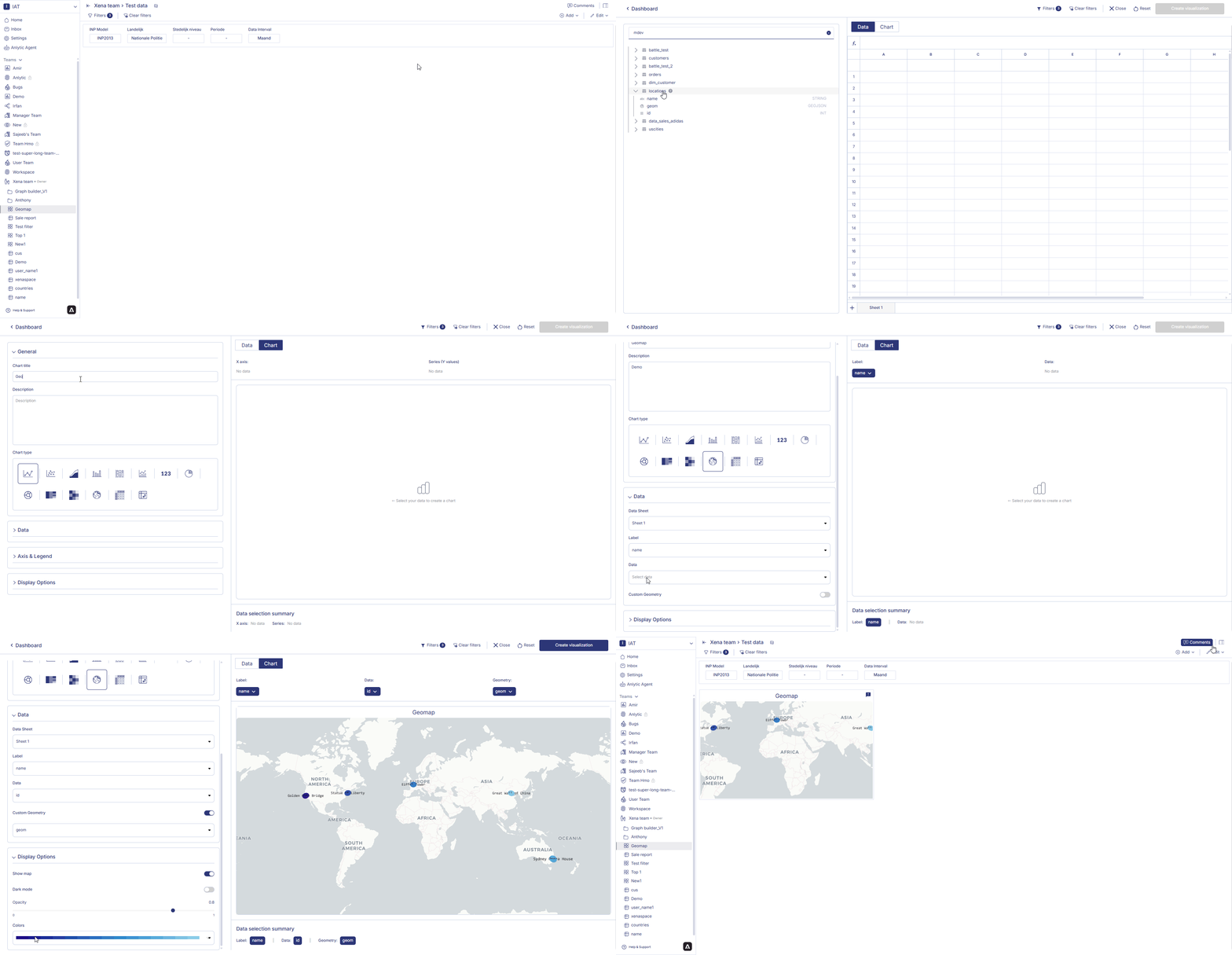
Open your dashboard, switch to Edit mode, and add a new visualization container.
Select Data visualization and click Create to open the chart builder.
Choose a dataset from the catalog and verify that Workbook filters have been applied correctly.
In the General section, set the chart title, description, and select the Geomap chart type.
In the Data section, choose the datasheet, select the Label field, assign the Data (geo identifier), and configure Custom Geometry if needed.
In Display options, configure map styling such as enabling the map background, toggling dark mode, adjusting opacity, selecting color gradients, and optionally enabling 3D extrusion with elevation scale controls.
Hover over the geo map container on your dashboard. Three dots will appear in the top right corner of the chart container. Click on the three dots to open the options menu.
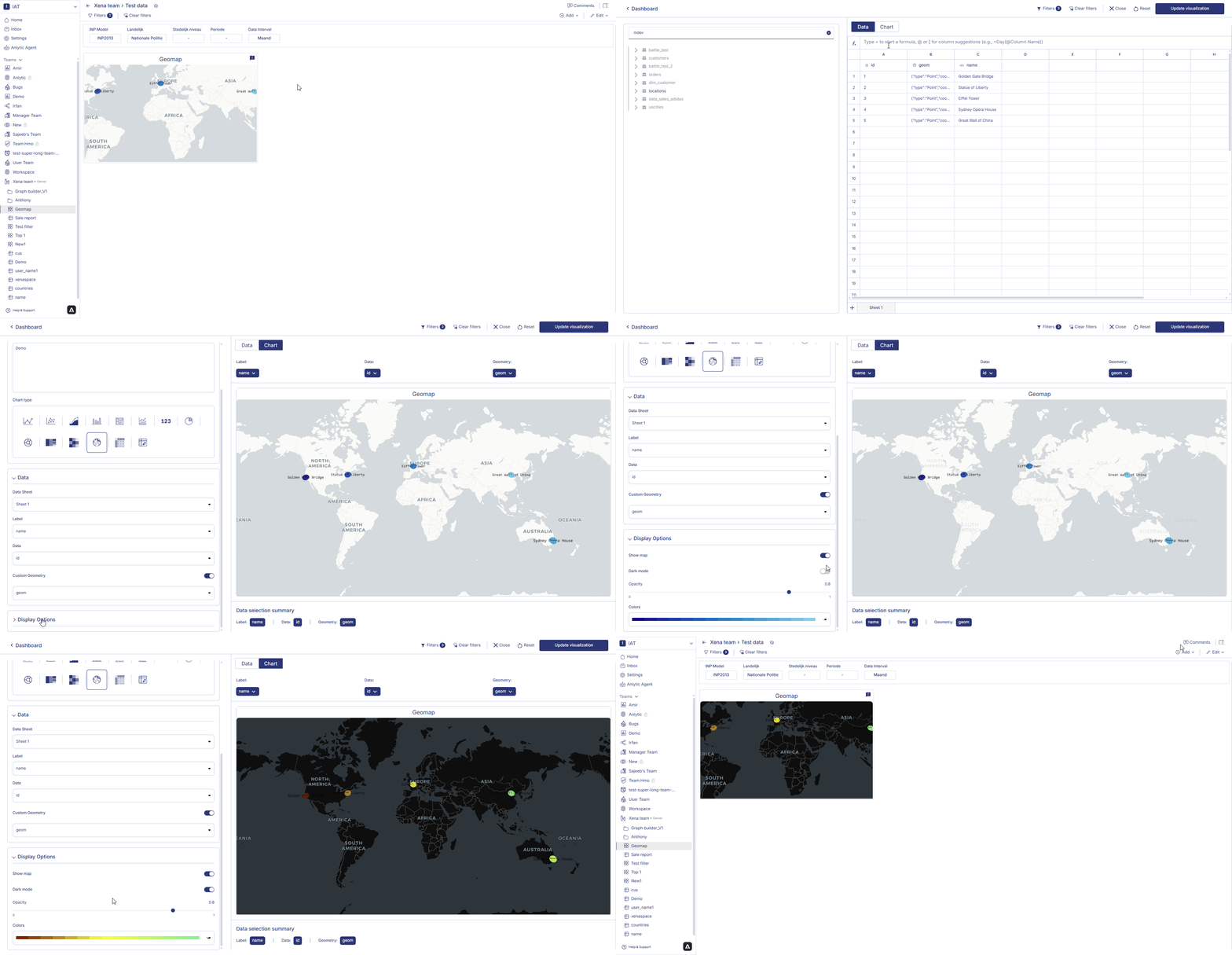
Click on Edit from the options menu. This will take you to the chart builder with your current configuration loaded.
Make changes to your data, layer type, or display options:
Switch between different layer types to see different visualizations
Adjust colors, sizes, and opacity settings
Add or remove data fields
Modify filters to focus on specific regions or data points
After making your changes, click Update visualization in the top-right corner of the page. Your updated geo map will be saved and displayed on the dashboard.
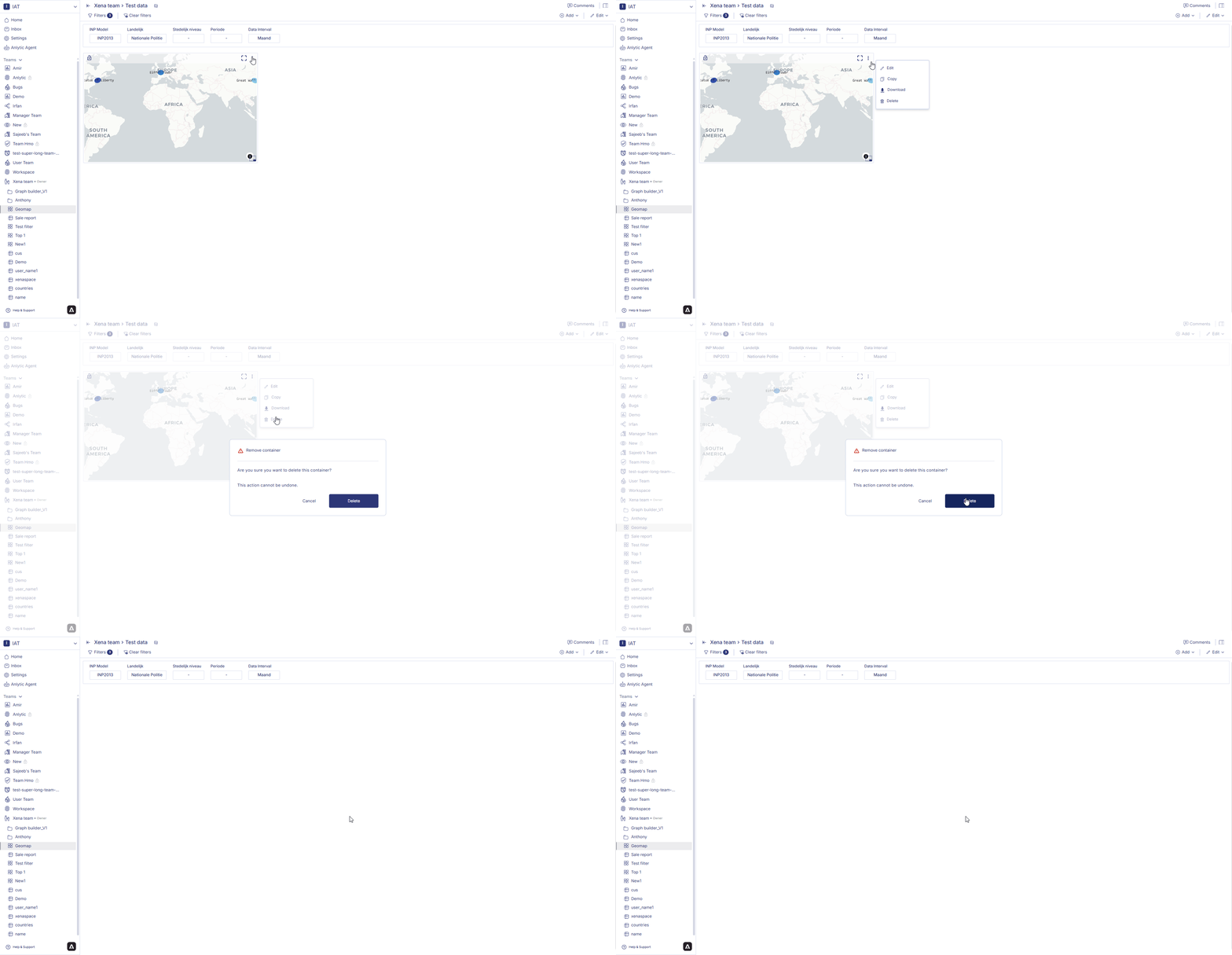
Hover over the geo map container on your dashboard. Three dots will appear in the top right corner of the chart container. Click on the three dots to open the options menu.
Click on Delete from the options menu.
A confirmation dialog will appear. Click Delete to confirm your choice. Your geo map will be permanently removed from the dashboard.
Choose the Right Layer Type - Use scatterplot for individual locations, heatmap for density visualization, and path/arc layers for showing connections.
Configure Geographical Metadata Properly - Ensure your geographical labels are correctly mapped to coordinate data for accurate positioning.
Use Color and Size Meaningfully - Leverage the color and size fields to encode additional dimensions of data on your map.
Adjust Opacity for Overlapping Points - When you have many overlapping points, reducing opacity helps reveal the density of data.
Test Different Map Themes - Try both light and dark map themes to see which provides better contrast for your data.
Apply Filters for Regional Focus - Use filters to create multiple maps focused on different regions or time periods.
Consider Data Volume - Geo maps with thousands of points may perform better with heatmap layers than scatterplot layers.
Sales Performance by Region - Show sales metrics across geographical territories
Store or Branch Locations - Display the distribution of physical locations
Logistics and Shipping Routes - Visualize transportation paths and connections
Demographic Analysis - Show population, income, or other demographic patterns
Event Tracking - Display the locations and distribution of events over time
Resource Distribution - Visualize the allocation of resources across regions
Customer Geography - Understand where your customers are located
By mastering geo maps, you can unlock powerful spatial insights from your data and create compelling visualizations that help stakeholders understand geographical patterns and trends.In the next section, we’ll explore filters to help you interactively control what data is displayed across your dashboards.
Last modified on March 6, 2026
{"docsConfig":{"theme":"mint","$schema":"https://mintlify.com/docs.json","name":"Anlytic","description":"Anlytic documentation — learn how to automate repetitive tasks, orchestrate workflows, and turn live data into real-time decisions with Anlytic's AI Command Centre.","colors":{"primary":"#4F46E5","light":"#6366F1","dark":"#241F25"},"logo":{"light":"https://mintcdn.com/anlytic/7zxtUS5LOlfk3lqE/logo/light.svg?fit=max\u0026auto=format\u0026n=7zxtUS5LOlfk3lqE\u0026q=85\u0026s=588e58390d10c78a6ec09c383fd45aa6","dark":"https://mintcdn.com/anlytic/7zxtUS5LOlfk3lqE/logo/dark.svg?fit=max\u0026auto=format\u0026n=7zxtUS5LOlfk3lqE\u0026q=85\u0026s=1ccef14307a9950814bc5600c20ad74f","href":"/"},"favicon":"https://mintcdn.com/anlytic/T7s_z2AFw8U-IjQ-/favicon.png?fit=max\u0026auto=format\u0026n=T7s_z2AFw8U-IjQ-\u0026q=85\u0026s=7c5e748d6ac3203bc9a499ec7bc5f593","api":{"openapi":"api-reference/openapi.yaml","playground":{"display":"none"},"examples":{"defaults":"required","prefill":true}},"appearance":{"default":"system"},"background":{"decoration":"gradient"},"navbar":{"links":[{"href":"https://www.anlytic.com/book-a-demo","label":"Book a Demo"},{"href":"https://anlytic.com/articles","label":"Articles"},{"href":"https://anlytic.com/pricing","label":"Pricing"}],"primary":{"type":"button","label":"Go to app","href":"https://app.anlytic.com"}},"footer":{"socials":{"website":"https://anlytic.com","linkedin":"https://www.linkedin.com/company/anlytic"},"links":[{"header":"Product","items":[{"label":"Dashboards","href":"https://anlytic.com/dashboards-feature"},{"label":"Automated Workflows","href":"https://anlytic.com/automated-workflows-feature"},{"label":"Data Organisation","href":"https://anlytic.com/data-organisation-features"},{"label":"Pricing","href":"https://anlytic.com/pricing"}]},{"header":"Resources","items":[{"label":"Articles","href":"https://anlytic.com/articles"},{"label":"Book a Demo","href":"https://anlytic.com/book-a-demo"},{"label":"Get Started","href":"https://anlytic.com/get-started"}]},{"header":"Legal","items":[{"label":"Terms of Service","href":"https://anlytic.com/terms-of-service"},{"label":"Privacy Policy","href":"https://anlytic.com/privacy-policy"},{"label":"Cookie Policy","href":"https://anlytic.com/cookie-policy"}]}]},"search":{"prompt":"Search Anlytic docs..."},"seo":{"metatags":{"canonical":"https://docs.anlytic.com"}},"fonts":{"heading":{"family":"Inter","weight":700},"body":{"family":"Inter","weight":400}},"styling":{"eyebrows":"breadcrumbs","codeblocks":{"theme":{"light":"github-light","dark":"dracula"}},"latex":false},"errors":{"404":{"redirect":false,"title":"Page not found","description":"The page you're looking for doesn't exist or has been moved. [Return to docs](/)."}},"contextual":{"options":["copy","view","chatgpt","claude"],"display":"header"},"thumbnails":{"appearance":"dark"},"metadata":{"timestamp":true},"navigation":{"global":{},"languages":[{"language":"en","default":true,"href":""},{"language":"nl","href":"nl"}]}},"deployment":{"deploymentMetadataValue":{"subdomain":"anlytic","hasAudioNarration":false,"actualSubdomain":"anlytic","customDomains":["docs.anlytic.com"],"gitSource":{"type":"github","owner":"anlytic","repo":"docs","deployBranch":"main","contentDirectory":"","isPrivate":true,"mountPath":"","label":""},"chroma":{"liveDeploymentHistoryId":"6a82f1bb5abb23d8d7c5d1e9","collectionId":"1e379965-3e44-4eb3-8fa0-6b3193de12fe","schemaVersion":"v3","latestBuiltDeploymentHistoryId":"6a82f1bb5abb23d8d7c5d1e9"},"entitlements":{"AI_CHAT":{"status":"DISABLED"},"REMOVE_BRANDING":{"status":"DISABLED"},"CONTEXTUAL_FEEDBACK":{"status":"DISABLED"},"CODE_SNIPPET_FEEDBACK":{"status":"DISABLED"}},"buildId":"6a82f1bb5abb23d8d7c5d1e9:success","clientVersion":"0.0.3908","searchFilterCounts":[{"language":"en","tag":"Function reference","count":151},{"language":"nl","tag":"Functiereferentie","count":151},{"language":"en","tag":"API Reference","count":142},{"language":"nl","tag":"API-referentie","count":142},{"language":"en","tag":"Docs","count":42},{"language":"nl","tag":"Documentatie","count":42},{"language":"en","tag":"Math Functions","count":39},{"language":"nl","tag":"Wiskundige functies","count":39},{"language":"en","tag":"Aggregate Functions","count":33},{"language":"nl","tag":"Aggregatiefuncties","count":33},{"language":"en","tag":"Window Functions","count":29},{"language":"nl","tag":"Vensterfuncties","count":29},{"language":"en","tag":"Date Functions","count":26},{"language":"nl","tag":"Datumfuncties","count":26},{"language":"en","tag":"Filters","count":21},{"language":"nl","tag":"Filters","count":21},{"language":"en","tag":"Charts","count":15},{"language":"nl","tag":"Grafieken","count":15},{"language":"en","tag":"Connectors","count":14},{"language":"nl","tag":"Connectoren","count":14}]},"assistantConfig":{"enableAskAiButton":false,"enableStarterQuestions":false,"enableContextualStarterQuestions":false,"enableAskAiSearchBar":true},"hasChatPermissions":false,"hasWebMcpPermissions":false,"toggles":[{"name":"kill-isr","enabled":true,"variant":{"name":"disabled","enabled":false,"feature_enabled":true},"impressionData":false},{"name":"agent-mintlify-slack","enabled":true,"variant":{"name":"disabled","enabled":false,"feature_enabled":true},"impressionData":false},{"name":"editor-v7-file-tree","enabled":true,"variant":{"name":"disabled","enabled":false,"feature_enabled":true},"impressionData":false},{"name":"agent-integrations-settings","enabled":true,"variant":{"name":"disabled","enabled":false,"feature_enabled":true},"impressionData":false},{"name":"automations-pr-grouping","enabled":true,"variant":{"name":"disabled","enabled":false,"feature_enabled":true},"impressionData":false},{"name":"custom-prefix","enabled":true,"variant":{"name":"disabled","enabled":false,"feature_enabled":true},"impressionData":false},{"name":"analytics-v7","enabled":true,"variant":{"name":"disabled","enabled":false,"feature_enabled":true},"impressionData":false},{"name":"user-flows-analytics","enabled":true,"variant":{"name":"disabled","enabled":false,"feature_enabled":true},"impressionData":false},{"name":"no-publish-flow","enabled":true,"variant":{"name":"disabled","enabled":false,"feature_enabled":true},"impressionData":false},{"name":"workos-onboarding","enabled":true,"variant":{"name":"disabled","enabled":false,"feature_enabled":true},"impressionData":false},{"name":"llms-txt-v2","enabled":true,"variant":{"name":"disabled","enabled":false,"feature_enabled":true},"impressionData":false},{"name":"pause-universal-search-reconcile","enabled":true,"variant":{"name":"disabled","enabled":false,"feature_enabled":true},"impressionData":false},{"name":"snapshot-serving-live","enabled":true,"variant":{"name":"disabled","enabled":false,"feature_enabled":true},"impressionData":false},{"name":"stripTemperatureMiddleware","enabled":true,"variant":{"name":"disabled","enabled":false,"feature_enabled":true},"impressionData":false},{"name":"per-site-search-delta","enabled":true,"variant":{"name":"disabled","enabled":false,"feature_enabled":true},"impressionData":false},{"name":"support-platform-pylon-zendesk","enabled":true,"variant":{"name":"disabled","enabled":false,"feature_enabled":true},"impressionData":false},{"name":"editor-branches-v2-autocommit","enabled":true,"variant":{"name":"disabled","enabled":false,"feature_enabled":true},"impressionData":false},{"name":"editor-branches-v2","enabled":true,"variant":{"name":"disabled","enabled":false,"feature_enabled":true},"impressionData":false},{"name":"snapshot-serving","enabled":true,"variant":{"name":"disabled","enabled":false,"feature_enabled":true},"impressionData":false},{"name":"instant-rollback","enabled":true,"variant":{"name":"disabled","enabled":false,"feature_enabled":true},"impressionData":false},{"name":"granular-notifications-server","enabled":true,"variant":{"name":"disabled","enabled":false,"feature_enabled":true},"impressionData":false},{"name":"granular-notifications","enabled":true,"variant":{"name":"disabled","enabled":false,"feature_enabled":true},"impressionData":false},{"name":"editor-private-page-search","enabled":true,"variant":{"name":"disabled","enabled":false,"feature_enabled":true},"impressionData":false},{"name":"automations-fable","enabled":true,"variant":{"name":"disabled","enabled":false,"feature_enabled":true},"impressionData":false},{"name":"fixed-ai-action-pricing","enabled":true,"variant":{"name":"disabled","enabled":false,"feature_enabled":true},"impressionData":false},{"name":"automation-resolve-merge-conflict","enabled":true,"variant":{"name":"disabled","enabled":false,"feature_enabled":true},"impressionData":false},{"name":"scoped-publishing","enabled":true,"variant":{"name":"disabled","enabled":false,"feature_enabled":true},"impressionData":false},{"name":"mintql","enabled":true,"variant":{"name":"disabled","enabled":false,"feature_enabled":true},"impressionData":false},{"name":"page-level-analytics","enabled":true,"variant":{"name":"disabled","enabled":false,"feature_enabled":true},"impressionData":false},{"name":"teamspace","enabled":true,"variant":{"name":"disabled","enabled":false,"feature_enabled":true},"impressionData":false},{"name":"editor-version-history-v2","enabled":true,"variant":{"name":"disabled","enabled":false,"feature_enabled":true},"impressionData":false},{"name":"vite-origin","enabled":true,"variant":{"name":"disabled","enabled":false,"feature_enabled":true},"impressionData":false},{"name":"editor-nav-generations","enabled":true,"variant":{"name":"disabled","enabled":false,"feature_enabled":true},"impressionData":false},{"name":"billing-page-v2","enabled":true,"variant":{"name":"disabled","enabled":false,"feature_enabled":true},"impressionData":false},{"name":"workspace-projects","enabled":true,"variant":{"name":"disabled","enabled":false,"feature_enabled":true},"impressionData":false},{"name":"assistant-v5","enabled":true,"variant":{"name":"disabled","enabled":false,"feature_enabled":true},"impressionData":false},{"name":"byok-sep-25","enabled":true,"variant":{"name":"disabled","enabled":false,"feature_enabled":true},"impressionData":false},{"name":"fork-pr-previews","enabled":true,"variant":{"name":"disabled","enabled":false,"feature_enabled":true},"impressionData":false},{"name":"revalidation-jwt","enabled":true,"variant":{"name":"disabled","enabled":false,"feature_enabled":true},"impressionData":false},{"name":"editor-agent-model-picker","enabled":true,"variant":{"name":"disabled","enabled":false,"feature_enabled":true},"impressionData":false},{"name":"client-snapshot-docs-config","enabled":true,"variant":{"name":"disabled","enabled":false,"feature_enabled":true},"impressionData":false},{"name":"hobby-abuse-scan","enabled":true,"variant":{"name":"disabled","enabled":false,"feature_enabled":true},"impressionData":false},{"name":"dashboard-inbox","enabled":true,"variant":{"name":"disabled","enabled":false,"feature_enabled":true},"impressionData":false}],"isAtlas":false,"googleFontsInlined":false},"customCss":[{"filePath":"style.css","content":"html.dark[data-current-path*=\"/api-reference/\"] #header pre{background-color:#282a36!important}@media (min-width:640px){html[data-current-path^=\"/nl/api-reference/\"] #page-title{font-size:1.75rem;line-height:2.125rem}}"}],"page":{"pagePath":"dashboards/charts/geomap","slug":"/dashboards/charts/geomap","pageMetadata":{"title":"Geo map","description":null,"href":"/dashboards/charts/geomap"},"pageType":"default","mdx":{"mdxSource":{"compiledSource":"\"use strict\";const{Fragment:_Fragment,jsx:_jsx,jsxs:_jsxs}=arguments[0];const{useMDXComponents:_provideComponents}=arguments[0];function _createMdxContent(props){const _components={a:`a`,li:`li`,ol:`ol`,p:`p`,strong:`strong`,ul:`ul`,..._provideComponents(),...props.components},{Heading,OptimizedImage}=_components;if(!Heading)_missingMdxReference(`Heading`,true);if(!OptimizedImage)_missingMdxReference(`OptimizedImage`,true);return _jsxs(_Fragment,{children:[_jsx(_components.p,{children:`In this chapter we are going to walk you through how you can create geographical visualizations using the Anlytic platform’s Geo Map feature.`}),`\n`,_jsx(_components.p,{children:`Geo Maps are powerful tools for visualizing location-based data, allowing you to display patterns, trends, and distributions across geographical areas. Whether you’re analyzing sales by region, tracking logistics routes, or visualizing population density, geo maps provide an intuitive way to understand spatial relationships in your data.`}),`\n`,_jsx(Heading,{level:`2`,id:`overview`,children:`Overview`}),`\n`,_jsx(_components.p,{children:`The Geo Map chart type supports multiple visualization styles:`}),`\n`,_jsxs(_components.ul,{children:[`\n`,_jsxs(_components.li,{children:[_jsx(_components.strong,{children:`Point-based visualizations`}),` - Display individual data points on a map using scatter plots or heatmap layers`]}),`\n`,_jsxs(_components.li,{children:[_jsx(_components.strong,{children:`Path and Arc visualizations`}),` - Show connections and routes between locations`]}),`\n`,_jsxs(_components.li,{children:[_jsx(_components.strong,{children:`Custom geographical layers`}),` - Visualize polygons and custom geographical boundaries`]}),`\n`]}),`\n`,_jsx(_components.p,{children:`Before creating a geo map, you need to ensure your data includes geographical information. This can be in the form of coordinates (latitude/longitude) or geographical labels that are mapped to coordinate data.`}),`\n`,_jsx(Heading,{level:`2`,id:`setting-up-geographical-data`,children:`Setting Up Geographical Data`}),`\n`,_jsx(Heading,{level:`3`,id:`marking-columns-as-geographical-labels`,children:`Marking Columns as Geographical Labels`}),`\n`,_jsx(_components.p,{children:`To use geographical data in your visualizations, you first need to configure your data columns with geographical metadata:`}),`\n`,_jsxs(_components.ol,{children:[`\n`,_jsxs(_components.li,{children:[`\n`,_jsxs(_components.p,{children:[`Navigate to `,_jsx(_components.strong,{children:`Data Management`}),` in the sidebar and select `,_jsx(_components.strong,{children:`Data Sources`}),`.`]}),`\n`]}),`\n`,_jsxs(_components.li,{children:[`\n`,_jsxs(_components.p,{children:[`Choose the data source that contains your geographical data and click on `,_jsx(_components.strong,{children:`Metadata`}),`.`]}),`\n`]}),`\n`,_jsxs(_components.li,{children:[`\n`,_jsx(_components.p,{children:`Locate the column that contains geographical information (such as country names, city names, or region codes).`}),`\n`]}),`\n`,_jsxs(_components.li,{children:[`\n`,_jsxs(_components.p,{children:[`In the metadata configuration for that column, you’ll see an option `,_jsx(_components.strong,{children:`Mark as geographical label`}),`. Enable this checkbox.`]}),`\n`]}),`\n`,_jsxs(_components.li,{children:[`\n`,_jsx(_components.p,{children:`Once enabled, additional mapping options will appear:`}),`\n`,_jsx(_components.p,{children:_jsx(_components.strong,{children:`Standard Mapping:`})}),`\n`,_jsxs(_components.ul,{children:[`\n`,_jsxs(_components.li,{children:[`Select `,_jsx(_components.strong,{children:`Geo column`})]}),`\n`,_jsx(_components.li,{children:`Choose the system geographical column that contains the coordinate data (e.g., “Countries”, “US States”, “World Cities”)`}),`\n`,_jsxs(_components.li,{children:[`Select `,_jsx(_components.strong,{children:`Label column`})]}),`\n`,_jsx(_components.li,{children:`Choose the column in the geo dataset that matches your data (e.g., country names, state codes)`}),`\n`]}),`\n`,_jsx(_components.p,{children:_jsx(_components.strong,{children:`Map via ID (Advanced):`})}),`\n`,_jsxs(_components.ul,{children:[`\n`,_jsxs(_components.li,{children:[`Toggle `,_jsx(_components.strong,{children:`Map via id`}),` if you want to map using an identifier column`]}),`\n`,_jsxs(_components.li,{children:[`Select `,_jsx(_components.strong,{children:`ID column`})]}),`\n`,_jsx(_components.li,{children:`Choose the column in your data that contains the unique identifier`}),`\n`,_jsxs(_components.li,{children:[`Select `,_jsx(_components.strong,{children:`Geo column`})]}),`\n`,_jsx(_components.li,{children:`Choose the geographical system column`}),`\n`,_jsxs(_components.li,{children:[`Select `,_jsx(_components.strong,{children:`Reference column`})]}),`\n`,_jsx(_components.li,{children:`Choose the column in the geo dataset that matches your ID`}),`\n`]}),`\n`]}),`\n`,_jsxs(_components.li,{children:[`\n`,_jsxs(_components.p,{children:[`Click `,_jsx(_components.strong,{children:`Deploy`}),` to save the geographical mapping configuration.`]}),`\n`]}),`\n`]}),`\n`,_jsx(OptimizedImage,{src:`https://mintlify.s3.us-west-1.amazonaws.com/anlytic/Resources/config%20geomap.gif`,alt:`alt text`}),`\n`,_jsx(_components.p,{children:`This configuration allows the platform to automatically convert your geographical labels into coordinates that can be displayed on a map.`}),`\n`,_jsx(Heading,{level:`3`,id:`understanding-geographical-data-types`,children:`Understanding Geographical Data Types`}),`\n`,_jsx(_components.p,{children:`The platform supports two main types of geographical data:`}),`\n`,_jsxs(_components.ol,{children:[`\n`,_jsx(_components.li,{children:_jsx(_components.strong,{children:`Point Data (Coordinates)`})}),`\n`]}),`\n`,_jsxs(_components.ul,{children:[`\n`,_jsx(_components.li,{children:`Latitude and longitude values that represent specific locations`}),`\n`]}),`\n`,_jsxs(_components.ol,{start:`2`,children:[`\n`,_jsx(_components.li,{children:_jsx(_components.strong,{children:`Polygon Data (Boundaries)`})}),`\n`]}),`\n`,_jsxs(_components.ul,{children:[`\n`,_jsx(_components.li,{children:`Geographical shapes that represent areas like countries, states, or custom regions`}),`\n`]}),`\n`,_jsx(_components.p,{children:`When you mark a column as a geographical label, the system automatically determines the appropriate data type and provides the correct visualization options.`}),`\n`,_jsx(Heading,{level:`2`,id:`how-to-create-a-geo-map`,children:`How to Create a Geo Map?`}),`\n`,_jsx(Heading,{level:`3`,id:`1-configure-your-workbook`,children:`1. Configure your Workbook`}),`\n`,_jsxs(_components.ol,{children:[`\n`,_jsxs(_components.li,{children:[`Open your dashboard, switch to `,_jsx(_components.strong,{children:`Edit mode`}),`, then click `,_jsx(_components.strong,{children:`add container`}),`.`]}),`\n`,_jsxs(_components.li,{children:[`Select `,_jsx(_components.strong,{children:`Data visualization`}),` and click `,_jsx(_components.strong,{children:`Create`}),` to open the chart builder.`]}),`\n`,_jsxs(_components.li,{children:[`Choose a dataset from the catalog panel and double-click the column names you want to use. The selected columns will appear in the `,_jsx(_components.strong,{children:`Workbook`}),`.`]}),`\n`]}),`\n`,_jsx(Heading,{level:`3`,id:`3-configure-your-chart`,children:`3. Configure your chart`}),`\n`,_jsxs(_components.ol,{children:[`\n`,_jsxs(_components.li,{children:[`Open your dashboard, switch to `,_jsx(_components.strong,{children:`Edit mode`}),`, and add a new visualization container.`]}),`\n`,_jsxs(_components.li,{children:[`Select `,_jsx(_components.strong,{children:`Data visualization`}),` and click `,_jsx(_components.strong,{children:`Create`}),` to open the chart builder.`]}),`\n`,_jsx(_components.li,{children:`Choose a dataset from the catalog and verify that Workbook filters have been applied correctly.`}),`\n`,_jsxs(_components.li,{children:[`In the `,_jsx(_components.strong,{children:`General`}),` section, set the chart title, description, and select the `,_jsx(_components.strong,{children:`Geomap`}),` chart type.`]}),`\n`,_jsxs(_components.li,{children:[`In the `,_jsx(_components.strong,{children:`Data`}),` section, choose the datasheet, select the `,_jsx(_components.strong,{children:`Label`}),` field, assign the `,_jsx(_components.strong,{children:`Data`}),` (geo identifier), and configure `,_jsx(_components.strong,{children:`Custom Geometry`}),` if needed.`]}),`\n`,_jsxs(_components.li,{children:[`In `,_jsx(_components.strong,{children:`Display options`}),`, configure map styling such as enabling the map background, toggling dark mode, adjusting opacity, selecting color gradients, and optionally enabling 3D extrusion with elevation scale controls.`]}),`\n`]}),`\n`,_jsx(Heading,{level:`3`,id:`4-save-the-chart`,children:`4. Save the chart`}),`\n`,_jsx(_components.p,{children:`Once all configurations are complete:`}),`\n`,_jsxs(_components.ol,{children:[`\n`,_jsx(_components.li,{children:`Review the chart preview to ensure it reflects the correct filtered Workbook data.`}),`\n`,_jsxs(_components.li,{children:[`Click `,_jsx(_components.strong,{children:`Create visualization`}),` in the top-right corner.`]}),`\n`,_jsx(_components.li,{children:`The chart will be saved and added to your dashboard, where you can resize or reposition it as needed.`}),`\n`]}),`\n`,_jsx(OptimizedImage,{src:`https://mintlify.s3.us-west-1.amazonaws.com/anlytic/Resources/create%20geomap.gif`,alt:`alt text`}),`\n`,_jsx(Heading,{level:`2`,id:`how-to-edit-a-geo-map`,children:`How to Edit a Geo Map?`}),`\n`,_jsx(_components.p,{children:`Follow these steps to edit an existing geo map:`}),`\n`,_jsxs(_components.ol,{children:[`\n`,_jsxs(_components.li,{children:[`\n`,_jsx(_components.p,{children:`Hover over the geo map container on your dashboard. Three dots will appear in the top right corner of the chart container. Click on the three dots to open the options menu.`}),`\n`]}),`\n`,_jsxs(_components.li,{children:[`\n`,_jsxs(_components.p,{children:[`Click on `,_jsx(_components.strong,{children:`Edit`}),` from the options menu. This will take you to the chart builder with your current configuration loaded.`]}),`\n`]}),`\n`,_jsxs(_components.li,{children:[`\n`,_jsx(_components.p,{children:`Make changes to your data, layer type, or display options:`}),`\n`,_jsxs(_components.ul,{children:[`\n`,_jsx(_components.li,{children:`Switch between different layer types to see different visualizations`}),`\n`,_jsx(_components.li,{children:`Adjust colors, sizes, and opacity settings`}),`\n`,_jsx(_components.li,{children:`Add or remove data fields`}),`\n`,_jsx(_components.li,{children:`Modify filters to focus on specific regions or data points`}),`\n`]}),`\n`]}),`\n`,_jsxs(_components.li,{children:[`\n`,_jsxs(_components.p,{children:[`After making your changes, click `,_jsx(_components.strong,{children:`Update visualization`}),` in the top-right corner of the page. Your updated geo map will be saved and displayed on the dashboard.`]}),`\n`]}),`\n`]}),`\n`,_jsx(OptimizedImage,{src:`https://mintlify.s3.us-west-1.amazonaws.com/anlytic/Resources/edit%20geomap.gif`,alt:`alt text`}),`\n`,_jsx(Heading,{level:`2`,id:`how-to-delete-a-geo-map`,children:`How to Delete a Geo Map?`}),`\n`,_jsx(_components.p,{children:`Follow these steps to delete a geo map:`}),`\n`,_jsxs(_components.ol,{children:[`\n`,_jsxs(_components.li,{children:[`\n`,_jsx(_components.p,{children:`Hover over the geo map container on your dashboard. Three dots will appear in the top right corner of the chart container. Click on the three dots to open the options menu.`}),`\n`]}),`\n`,_jsxs(_components.li,{children:[`\n`,_jsxs(_components.p,{children:[`Click on `,_jsx(_components.strong,{children:`Delete`}),` from the options menu.`]}),`\n`]}),`\n`,_jsxs(_components.li,{children:[`\n`,_jsxs(_components.p,{children:[`A confirmation dialog will appear. Click `,_jsx(_components.strong,{children:`Delete`}),` to confirm your choice. Your geo map will be permanently removed from the dashboard.`]}),`\n`]}),`\n`]}),`\n`,_jsx(OptimizedImage,{src:`https://mintlify.s3.us-west-1.amazonaws.com/anlytic/Resources/delete%20geomap.gif`,alt:`alt text`}),`\n`,_jsx(Heading,{level:`2`,id:`advanced-geo-map-features`,children:`Advanced Geo Map Features`}),`\n`,_jsx(Heading,{level:`3`,id:`applying-filters-to-geo-maps`,children:`Applying Filters to Geo Maps`}),`\n`,_jsx(_components.p,{children:`Like other visualizations, you can apply filters to geo maps to focus on specific regions or data subsets:`}),`\n`,_jsxs(_components.ol,{children:[`\n`,_jsxs(_components.li,{children:[`\n`,_jsx(_components.p,{children:`In the chart builder, click on a column in the Data tab to apply a filter.`}),`\n`]}),`\n`,_jsxs(_components.li,{children:[`\n`,_jsx(_components.p,{children:`Configure the filter criteria (e.g., show only specific countries, date ranges, or value thresholds).`}),`\n`]}),`\n`,_jsxs(_components.li,{children:[`\n`,_jsx(_components.p,{children:`The map will update to show only the filtered data points.`}),`\n`]}),`\n`]}),`\n`,_jsx(_components.p,{children:`Filters are particularly useful for geo maps when you want to:`}),`\n`,_jsxs(_components.ul,{children:[`\n`,_jsx(_components.li,{children:`Zoom in on specific geographical regions`}),`\n`,_jsx(_components.li,{children:`Filter by time periods to show temporal changes`}),`\n`,_jsx(_components.li,{children:`Display only data points that meet certain criteria`}),`\n`]}),`\n`,_jsx(Heading,{level:`3`,id:`using-aggregates-with-geo-maps`,children:`Using Aggregates with Geo Maps`}),`\n`,_jsx(_components.p,{children:`You can apply aggregates to columns before using them in geo maps:`}),`\n`,_jsxs(_components.ol,{children:[`\n`,_jsxs(_components.li,{children:[`\n`,_jsx(_components.p,{children:`In the Data tab, click the three dots next to a numeric column.`}),`\n`]}),`\n`,_jsxs(_components.li,{children:[`\n`,_jsx(_components.p,{children:`Select an aggregate function (Sum, Avg, Count, etc.).`}),`\n`]}),`\n`,_jsxs(_components.li,{children:[`\n`,_jsx(_components.p,{children:`The aggregated column will appear in your Data tab and can be used for the Size or Color fields in your geo map.`}),`\n`]}),`\n`]}),`\n`,_jsx(_components.p,{children:`This is useful for creating maps that show summarized data, such as total sales by city or average temperatures by region.`}),`\n`,_jsx(Heading,{level:`3`,id:`interactive-map-features`,children:`Interactive Map Features`}),`\n`,_jsx(_components.p,{children:`When viewing a geo map on your dashboard:`}),`\n`,_jsxs(_components.ul,{children:[`\n`,_jsxs(_components.li,{children:[_jsx(_components.strong,{children:`Pan`}),` - Click and drag to move around the map`]}),`\n`,_jsxs(_components.li,{children:[_jsx(_components.strong,{children:`Zoom`}),` - Use the mouse wheel or pinch gesture to zoom in and out`]}),`\n`,_jsxs(_components.li,{children:[_jsx(_components.strong,{children:`Hover`}),` - Hover over data points to see detailed information in tooltips`]}),`\n`,_jsxs(_components.li,{children:[_jsx(_components.strong,{children:`Full screen`}),` - Click the full-screen icon to expand the map for detailed exploration`]}),`\n`]}),`\n`,_jsx(Heading,{level:`2`,id:`tips-for-effective-geo-maps`,children:`Tips for Effective Geo Maps`}),`\n`,_jsxs(_components.ol,{children:[`\n`,_jsxs(_components.li,{children:[`\n`,_jsxs(_components.p,{children:[_jsx(_components.strong,{children:`Choose the Right Layer Type`}),` - Use scatterplot for individual locations, heatmap for density visualization, and path/arc layers for showing connections.`]}),`\n`]}),`\n`,_jsxs(_components.li,{children:[`\n`,_jsxs(_components.p,{children:[_jsx(_components.strong,{children:`Configure Geographical Metadata Properly`}),` - Ensure your geographical labels are correctly mapped to coordinate data for accurate positioning.`]}),`\n`]}),`\n`,_jsxs(_components.li,{children:[`\n`,_jsxs(_components.p,{children:[_jsx(_components.strong,{children:`Use Color and Size Meaningfully`}),` - Leverage the color and size fields to encode additional dimensions of data on your map.`]}),`\n`]}),`\n`,_jsxs(_components.li,{children:[`\n`,_jsxs(_components.p,{children:[_jsx(_components.strong,{children:`Adjust Opacity for Overlapping Points`}),` - When you have many overlapping points, reducing opacity helps reveal the density of data.`]}),`\n`]}),`\n`,_jsxs(_components.li,{children:[`\n`,_jsxs(_components.p,{children:[_jsx(_components.strong,{children:`Test Different Map Themes`}),` - Try both light and dark map themes to see which provides better contrast for your data.`]}),`\n`]}),`\n`,_jsxs(_components.li,{children:[`\n`,_jsxs(_components.p,{children:[_jsx(_components.strong,{children:`Apply Filters for Regional Focus`}),` - Use filters to create multiple maps focused on different regions or time periods.`]}),`\n`]}),`\n`,_jsxs(_components.li,{children:[`\n`,_jsxs(_components.p,{children:[_jsx(_components.strong,{children:`Consider Data Volume`}),` - Geo maps with thousands of points may perform better with heatmap layers than scatterplot layers.`]}),`\n`]}),`\n`]}),`\n`,_jsx(Heading,{level:`2`,id:`common-use-cases`,children:`Common Use Cases`}),`\n`,_jsx(_components.p,{children:`Geo maps are ideal for visualizing:`}),`\n`,_jsxs(_components.ul,{children:[`\n`,_jsxs(_components.li,{children:[_jsx(_components.strong,{children:`Sales Performance by Region`}),` - Show sales metrics across geographical territories`]}),`\n`,_jsxs(_components.li,{children:[_jsx(_components.strong,{children:`Store or Branch Locations`}),` - Display the distribution of physical locations`]}),`\n`,_jsxs(_components.li,{children:[_jsx(_components.strong,{children:`Logistics and Shipping Routes`}),` - Visualize transportation paths and connections`]}),`\n`,_jsxs(_components.li,{children:[_jsx(_components.strong,{children:`Demographic Analysis`}),` - Show population, income, or other demographic patterns`]}),`\n`,_jsxs(_components.li,{children:[_jsx(_components.strong,{children:`Event Tracking`}),` - Display the locations and distribution of events over time`]}),`\n`,_jsxs(_components.li,{children:[_jsx(_components.strong,{children:`Resource Distribution`}),` - Visualize the allocation of resources across regions`]}),`\n`,_jsxs(_components.li,{children:[_jsx(_components.strong,{children:`Customer Geography`}),` - Understand where your customers are located`]}),`\n`]}),`\n`,_jsx(_components.p,{children:`By mastering geo maps, you can unlock powerful spatial insights from your data and create compelling visualizations that help stakeholders understand geographical patterns and trends.`}),`\n`,_jsxs(_components.p,{children:[`In the next section, we’ll explore `,_jsx(_components.a,{href:`/dashboards/filters`,children:`filters`}),` to help you interactively control what data is displayed across your dashboards.`]})]})}function MDXContent(props={}){const{wrapper:MDXLayout}={..._provideComponents(),...props.components};return MDXLayout?_jsx(MDXLayout,{...props,children:_jsx(_createMdxContent,{...props})}):_createMdxContent(props)}return{default:MDXContent};function _missingMdxReference(id,component){throw new Error(`Expected `+(component?`component`:`object`)+\" `\"+id+\"` to be defined: you likely forgot to import, pass, or provide it.\")}","frontmatter":{},"scope":{"codeStyling":{"theme":{"light":"github-light","dark":"dracula"}},"config":{},"pageMetadata":{"title":"Geo map","description":null,"href":"/dashboards/charts/geomap"}}},"mdxSourceWithNoJs":null},"mdxExtracts":{"tableOfContents":[{"title":"Overview","slug":"overview","depth":2,"children":[]},{"title":"Setting Up Geographical Data","slug":"setting-up-geographical-data","depth":2,"children":[{"title":"Marking Columns as Geographical Labels","slug":"marking-columns-as-geographical-labels","depth":3,"children":[]},{"title":"Understanding Geographical Data Types","slug":"understanding-geographical-data-types","depth":3,"children":[]}]},{"title":"How to Create a Geo Map?","slug":"how-to-create-a-geo-map","depth":2,"children":[{"title":"1. Configure your Workbook","slug":"1-configure-your-workbook","depth":3,"children":[]},{"title":"3. Configure your chart","slug":"3-configure-your-chart","depth":3,"children":[]},{"title":"4. Save the chart","slug":"4-save-the-chart","depth":3,"children":[]}]},{"title":"How to Edit a Geo Map?","slug":"how-to-edit-a-geo-map","depth":2,"children":[]},{"title":"How to Delete a Geo Map?","slug":"how-to-delete-a-geo-map","depth":2,"children":[]},{"title":"Advanced Geo Map Features","slug":"advanced-geo-map-features","depth":2,"children":[{"title":"Applying Filters to Geo Maps","slug":"applying-filters-to-geo-maps","depth":3,"children":[]},{"title":"Using Aggregates with Geo Maps","slug":"using-aggregates-with-geo-maps","depth":3,"children":[]},{"title":"Interactive Map Features","slug":"interactive-map-features","depth":3,"children":[]}]},{"title":"Tips for Effective Geo Maps","slug":"tips-for-effective-geo-maps","depth":2,"children":[]},{"title":"Common Use Cases","slug":"common-use-cases","depth":2,"children":[]}],"codeExamples":{}},"jsLinks":[],"subdomain":"anlytic","siteName":"Anlytic","title":"Geo map - Anlytic","navMaps":{"firstHrefInVersion":{},"firstHrefInLanguage":{"en":{"href":"/dashboards/charts/geomap","matchLevel":0},"nl":{"href":"/nl/dashboards/charts/geomap","matchLevel":1}}},"lastModified":"2026-08-17T11:34:49.853Z","gitLastModified":"2026-03-06T16:53:23.000Z","originalFileLocation":"dashboards/charts/geomap.mdx","locale":"en"},"headHtml":"\u003cscript data-mint-head>(function(){var d=document.documentElement,p=null;if(!p){try{p=localStorage.getItem(\"isDarkMode\")}catch(e){}if(p==='true')p='dark';else if(p==='false')p='light';if(p!=='light'\u0026\u0026p!=='dark'\u0026\u0026p!=='system')p=\"system\"}var r=p==='system'?(matchMedia(\"(prefers-color-scheme: dark)\").matches?'dark':'light'):p;d.classList.remove(r==='dark'?'light':'dark');d.classList.add(r);d.setAttribute(\"data-theme-preference\",p)})();\u003c/script>\u003cmeta data-mint-head name=\"application-name\" content=\"Anlytic\">\u003cmeta data-mint-head name=\"generator\" content=\"Mintlify\">\u003clink data-mint-head rel=\"icon\" type=\"image/png\" sizes=\"192x192\" href=\"/mintlify-assets/_mintlify/favicons/anlytic/OGVuNM7y96UUGKog/_generated/favicon/android-chrome-192x192.png\" media=\"(prefers-color-scheme: light)\">\u003clink data-mint-head rel=\"apple-touch-icon\" type=\"image/png\" sizes=\"180x180\" href=\"/mintlify-assets/_mintlify/favicons/anlytic/OGVuNM7y96UUGKog/_generated/favicon/apple-touch-icon.png\">\u003clink data-mint-head rel=\"icon\" type=\"image/png\" sizes=\"16x16\" href=\"/mintlify-assets/_mintlify/favicons/anlytic/OGVuNM7y96UUGKog/_generated/favicon/favicon-16x16.png\" media=\"(prefers-color-scheme: light)\">\u003clink data-mint-head rel=\"icon\" type=\"image/png\" sizes=\"32x32\" href=\"/mintlify-assets/_mintlify/favicons/anlytic/OGVuNM7y96UUGKog/_generated/favicon/favicon-32x32.png\" media=\"(prefers-color-scheme: light)\">\u003clink data-mint-head rel=\"shortcut icon\" type=\"image/x-icon\" href=\"/mintlify-assets/_mintlify/favicons/anlytic/OGVuNM7y96UUGKog/_generated/favicon/favicon.ico\" media=\"(prefers-color-scheme: light)\">\u003clink data-mint-head rel=\"icon\" type=\"image/png\" sizes=\"192x192\" href=\"/mintlify-assets/_mintlify/favicons/anlytic/OGVuNM7y96UUGKog/_generated/favicon-dark/android-chrome-192x192.png\" media=\"(prefers-color-scheme: dark)\">\u003clink data-mint-head rel=\"icon\" type=\"image/png\" sizes=\"16x16\" href=\"/mintlify-assets/_mintlify/favicons/anlytic/OGVuNM7y96UUGKog/_generated/favicon-dark/favicon-16x16.png\" media=\"(prefers-color-scheme: dark)\">\u003clink data-mint-head rel=\"icon\" type=\"image/png\" sizes=\"32x32\" href=\"/mintlify-assets/_mintlify/favicons/anlytic/OGVuNM7y96UUGKog/_generated/favicon-dark/favicon-32x32.png\" media=\"(prefers-color-scheme: dark)\">\u003clink data-mint-head rel=\"shortcut icon\" type=\"image/x-icon\" href=\"/mintlify-assets/_mintlify/favicons/anlytic/OGVuNM7y96UUGKog/_generated/favicon-dark/favicon.ico\" media=\"(prefers-color-scheme: dark)\">\u003cmeta data-mint-head property=\"og:title\" content=\"Geo map - Anlytic\">\u003cmeta data-mint-head property=\"og:site_name\" content=\"Anlytic\">\u003cmeta data-mint-head property=\"og:url\" content=\"https://docs.anlytic.com/dashboards/charts/geomap\">\u003cmeta data-mint-head property=\"og:type\" content=\"website\">\u003cmeta data-mint-head name=\"twitter:card\" content=\"summary_large_image\">\u003cmeta data-mint-head name=\"twitter:title\" content=\"Geo map - Anlytic\">\u003cmeta data-mint-head name=\"msapplication-config\" content=\"/mintlify-assets/_mintlify/favicons/anlytic/OGVuNM7y96UUGKog/_generated/favicon/browserconfig.xml\">\u003cmeta data-mint-head name=\"apple-mobile-web-app-title\" content=\"Anlytic\">\u003cmeta data-mint-head name=\"msapplication-TileColor\" content=\"#4F46E5\">\u003clink data-mint-head rel=\"canonical\" href=\"https://docs.anlytic.com/dashboards/charts/geomap\">\u003clink data-mint-head rel=\"alternate\" type=\"application/xml\" href=\"/sitemap.xml\">\u003clink data-mint-head rel=\"alternate\" type=\"text/markdown\" href=\"/dashboards/charts/geomap.md\">\u003clink data-mint-head rel=\"alternate\" hreflang=\"en\" href=\"https://docs.anlytic.com/dashboards/charts/geomap\">\u003clink data-mint-head rel=\"alternate\" hreflang=\"nl\" href=\"https://docs.anlytic.com/nl/dashboards/charts/geomap\">\u003clink data-mint-head rel=\"alternate\" hreflang=\"x-default\" href=\"https://docs.anlytic.com/dashboards/charts/geomap\">\u003cscript data-mint-head type=\"application/ld+json\">{\"@context\":\"https://schema.org\",\"@graph\":[{\"@type\":\"Organization\",\"@id\":\"https://docs.anlytic.com/#organization\",\"name\":\"Anlytic\",\"url\":\"https://docs.anlytic.com\",\"logo\":{\"@type\":\"ImageObject\",\"url\":\"https://mintcdn.com/anlytic/7zxtUS5LOlfk3lqE/logo/light.svg?fit=max\u0026auto=format\u0026n=7zxtUS5LOlfk3lqE\u0026q=85\u0026s=588e58390d10c78a6ec09c383fd45aa6\"}},{\"@type\":\"WebSite\",\"@id\":\"https://docs.anlytic.com#website\",\"name\":\"Anlytic\",\"url\":\"https://docs.anlytic.com\",\"publisher\":{\"@id\":\"https://docs.anlytic.com/#organization\"}},{\"@type\":\"WebPage\",\"@id\":\"https://docs.anlytic.com/dashboards/charts/geomap#webpage\",\"url\":\"https://docs.anlytic.com/dashboards/charts/geomap\",\"name\":\"Geo map\",\"dateModified\":\"2026-03-06T16:53:23.000Z\",\"isPartOf\":{\"@id\":\"https://docs.anlytic.com#website\"},\"breadcrumb\":{\"@id\":\"https://docs.anlytic.com/dashboards/charts/geomap#breadcrumb\"}},{\"@type\":\"BreadcrumbList\",\"@id\":\"https://docs.anlytic.com/dashboards/charts/geomap#breadcrumb\",\"itemListElement\":[{\"@type\":\"ListItem\",\"position\":1,\"name\":\"Charts\",\"item\":\"https://docs.anlytic.com/dashboards/charts/overview\"},{\"@type\":\"ListItem\",\"position\":2,\"name\":\"Geo map\",\"item\":\"https://docs.anlytic.com/dashboards/charts/geomap\"}]},{\"@type\":[\"Article\",\"TechArticle\"],\"@id\":\"https://docs.anlytic.com/dashboards/charts/geomap#article\",\"headline\":\"Geo map\",\"name\":\"Geo map\",\"url\":\"https://docs.anlytic.com/dashboards/charts/geomap\",\"mainEntityOfPage\":{\"@id\":\"https://docs.anlytic.com/dashboards/charts/geomap#webpage\"},\"dateModified\":\"2026-03-06T16:53:23.000Z\",\"publisher\":{\"@id\":\"https://docs.anlytic.com/#organization\"},\"isPartOf\":{\"@id\":\"https://docs.anlytic.com#website\"}}]}\u003c/script>\u003cscript data-mint-head type=\"application/ld+json\">{\"@context\":\"https://schema.org\",\"@type\":\"WebSite\",\"name\":\"Anlytic\",\"creator\":{\"@type\":\"Organization\",\"name\":\"Mintlify\",\"url\":\"https://mintlify.com\"}}\u003c/script>","siteName":"Anlytic","nav":{"global":{},"languages":[{"language":"en","default":true,"tabs":[{"tab":"Docs","groups":[{"group":"Getting started","pages":[{"title":"Welcome to Anlytic","href":""},{"title":"Platform overview","href":"/quickstart/overview"}]},{"group":"Setup guide","pages":[{"title":"Initial setup","href":"/quickstart/initial-setup"},{"title":"User management","href":"/quickstart/user-management"},{"title":"Connect a data source","href":"/quickstart/connect-data-source"},{"title":"Team configuration","href":"/quickstart/team-configuration"},{"title":"Build your first dashboard","href":"/quickstart/first-dashboard"}]},{"group":"Dashboards","pages":[{"title":"Dashboards","href":"/dashboards/overview"},{"title":"Building workbooks","href":"/dashboards/workbook"},{"title":"Organizing a dashboard","href":"/dashboards/organize"}]},{"group":"Charts","pages":[{"title":"Charts overview","href":"/dashboards/charts/overview"},{"title":"Line, bar and scatter charts","href":"/dashboards/charts/point"},{"title":"Heatmap","href":"/dashboards/charts/heatmap"},{"title":"Icicle chart","href":"/dashboards/charts/icicle"},{"title":"Headline statistics","href":"/dashboards/charts/headline"},{"title":"Pie chart","href":"/dashboards/charts/piechart"},{"title":"Pivot table","href":"/dashboards/charts/pivottable"},{"title":"Data table","description":null,"href":"/dashboards/charts/datatable"},{"title":"Geo map","href":"/dashboards/charts/geomap"}]},{"group":"Filters","pages":[{"title":"Workspace filters","description":null,"href":"/data/filters/create"},{"title":"Dashboard filters","href":"/data/filters/dashboard-filters"},{"title":"Edit filters","href":"/data/filters/edit"},{"title":"Delete filters","href":"/data/filters/delete"}]},{"group":"Functions","pages":[{"title":"Functions overview","href":"/dashboards/functions/overview"},{"title":"Function index","href":"/dashboards/functions/function-index"}]},{"group":"Connectors","pages":[{"title":"Data connectors","href":"/data/connectors/overview"},{"title":"Set up a connection","href":"/data/connectors/create"},{"title":"Error handling","href":"/data/connectors/errors"}]},{"group":"Authentication","pages":[{"title":"Authentication","href":"/auth/overview"},{"title":"System roles","href":"/auth/system-roles"},{"title":"Workspace roles","href":"/auth/workspace-roles"},{"title":"Team roles","href":"/auth/team-roles"}]},{"group":"Catalogs","pages":[{"title":"Data catalogs","href":"/data/catalogs/overview"},{"title":"Create a catalog","href":"/data/catalogs/create"},{"title":"Edit a catalog","href":"/data/catalogs/edit"},{"title":"Multi-catalog support","href":"/data/catalogs/multi-catalog"}]},{"group":"Metadata","pages":[{"title":"Metadata","href":"/data/meta/overview"},{"title":"Add metadata","href":"/data/meta/create"},{"title":"Edit metadata","href":"/data/meta/edit"}]},{"group":"Relationships","pages":[{"title":"Relationships","href":"/data/relationships/overview"},{"title":"Create relationships","href":"/data/relationships/create"},{"title":"Edit relationships","href":"/data/relationships/edit"}]}]},{"tab":"Function reference","pages":[{"title":"Function reference","href":"/dashboards/functions/aggregate/array_agg"}]},{"tab":"API Reference","pages":[{"title":"API Reference","href":"/api-reference/configuration/get-schedule-policy"}]}]},{"language":"nl","pages":[{"title":"nl","href":"/nl/dashboards/charts/geomap"}]}]},"title":"Geo map - Anlytic","buildId":"dpl_CUnGQP1HgFUzoxatVC37y4zP83Vx","deploymentId":"dpl_CUnGQP1HgFUzoxatVC37y4zP83Vx","dynamics":["a74be98ba7"],"chunks":["zoom-image-lightbox-DQ5W4Q2v.js","PlusIcon-jZ8vgk6R.js","lightbox-handle-r17bVUz3.js"]}


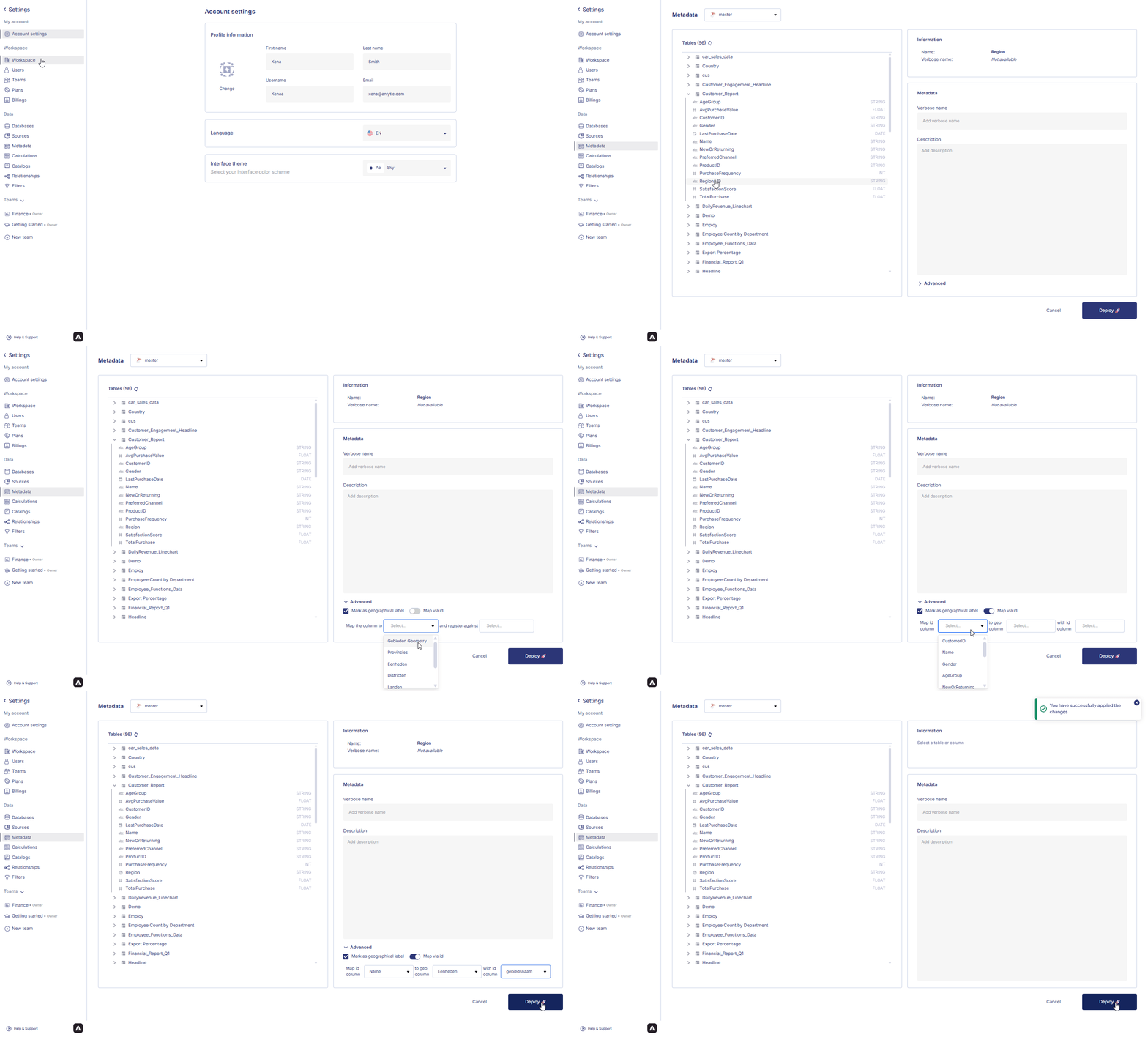 This configuration allows the platform to automatically convert your geographical labels into coordinates that can be displayed on a map.