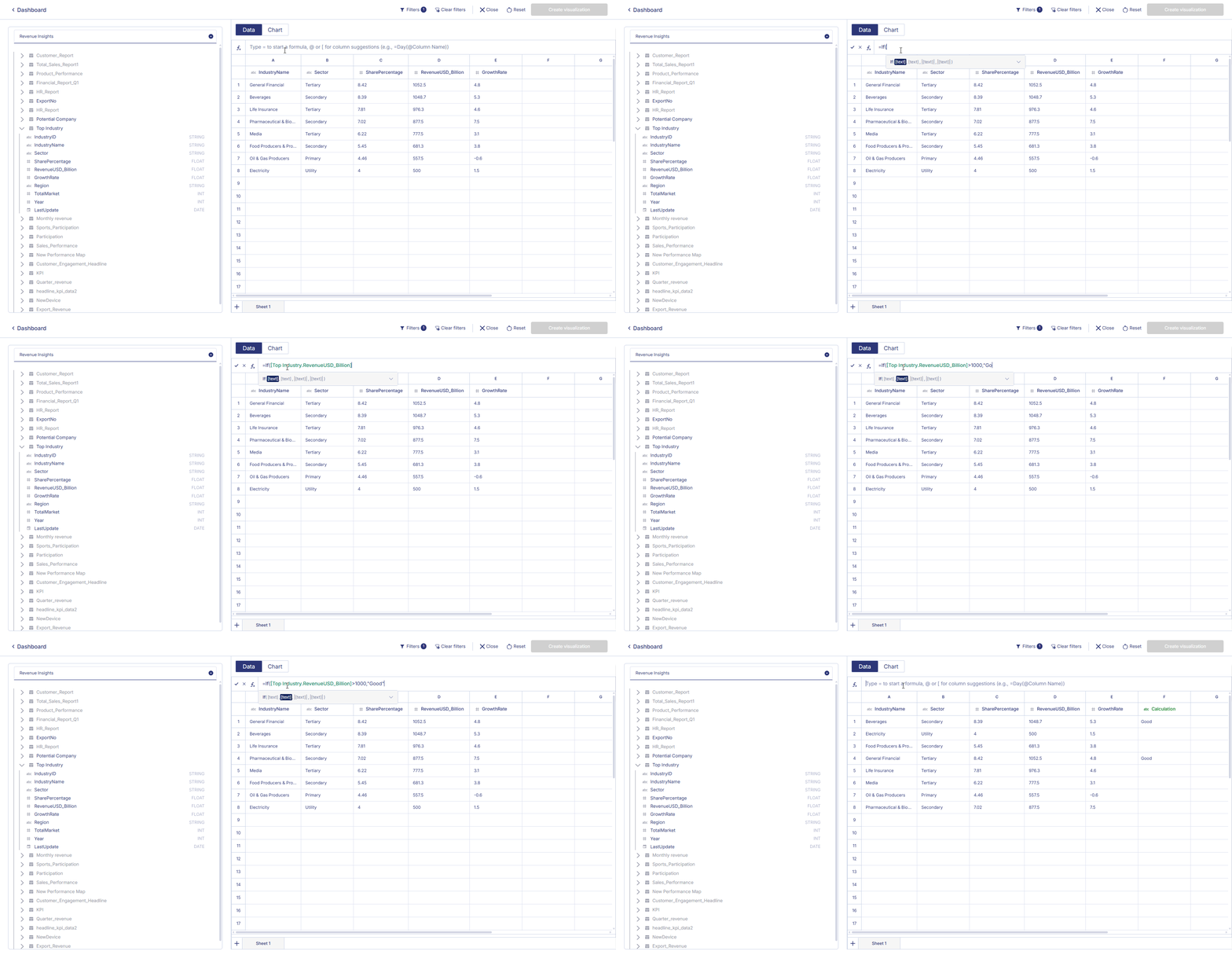
Building Workbooks
A workbook is where you prepare your dataset, apply transformations, and build visualizations using Graphbuilder.
This chapter provides a complete end-to-end workflow from connecting your data source, preparing your catalog, and shaping your dataset inside the workbook.
1. Connect Your Data Source
Before building a workbook, you must first bring data into Anlytic, either by connecting a database or uploading a file.
1.1 Create a New Data Connection
- Click the workspace name at the top of the left sidebar → select Settings.
- In the left sidebar, click Databases.
- Click New connection.
- Select your cloud data warehouse → click Save and continue.
- Enter the required connection credentials.
- Click Save and continue to finalize.
1.2 Uploading a File as a Data Source
Anlytic supports CSV, JSON, and Parquet file uploads.
- Go to Sources under the Data section.
- Drag and drop your file into the upload area, or click Select File.
- After upload, review the Configuration table of detected fields.
Configure the file import
- Choose New table or Existing table
- Select the target Database
- Provide a table name (for new tables)
Review each column:
- Data type (Integer, Text, Boolean, Date, etc.)
- Default value
- Nullable / Not nullable
- Primary key
- Delete column (trash icon)
Click Import to Anlytic to finish.
A confirmation message will indicate success or display errors.
Your connection is now established and ready for metadata, relationships, and catalog configuration.
You can refer to more detailed information in the Add a Data Source section.
2. Add Metadata
Metadata provides clarity and meaning to tables and columns.
To add metadata:
- Select a table from the left panel.
- Add a verbose name.
- Add a table description.
- Select a column.
- Add a verbose column name.
- Add a column description.
- Click Save and continue.
Metadata appears across catalogs, workbooks, and visualizations.
You can refer to more detailed information in the Add Metadata section.
3. Create Data Relationships
Relationships define how tables join together in the workbook.
- Select a table in connection point A → choose a column.
- Select a table in connection point B → choose a column.
- Click Form Relation.
- Use the focus icon to visualize the relationship.
- Click Save & continue.
Multiple relationships can be created across your schema.
You can refer to more detailed information in the Define Relationships section.
4. Create a Catalog
A catalog organizes your data model for analysis and workbook usage.
Catalog Interface Overview
- Left panel → tables, metrics, and columns
- Right panel → catalog hierarchy and folders
Steps
- Click Add catalog → rename using the edit (pen) icon.
- Drag entire tables into the catalog.
- To add specific fields, expand a table → drag individual columns.
- Use folders to organize:
- Add folders
- Create nested folders
- Rearrange via drag & drop
- Click Deploy to save your catalog structure.
You can refer to more detailed information in the Create a Catalog section.
5. Create a Workbook
5.1 Opening a Workbook
A workbook opens automatically when creating a visualization.
- Open a dashboard.
- Switch to Edit mode.
- Click Add row → enter a title → click Add.
- Click Add visualization → select Data visualization.
- Click Create to launch the Workbook + Data Builder.
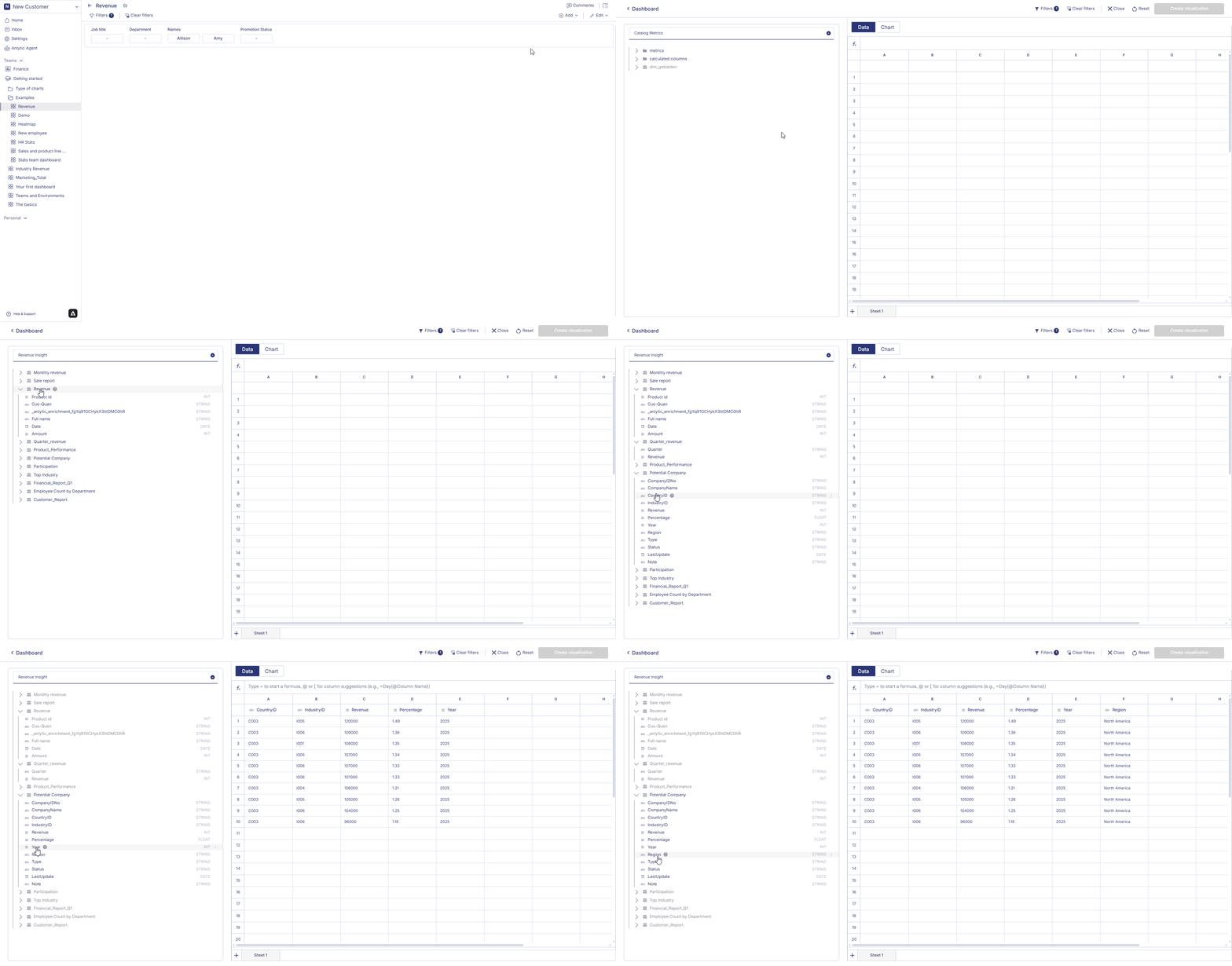
A new workbook is created or an existing one is reused.
5.2 Adding Data to the Workbook
- The left panel displays your catalog.
- Select a table.
- Double-click columns to add them.
- Columns appear in the Workbook datasheet.
- You may add fields across multiple tables.
- Joins are handled automatically based on catalog-defined relationships.
6. Managing Workbook Data
The workbook provides tools for preparing and transforming your dataset.
6.1 Managing Multiple Sheets
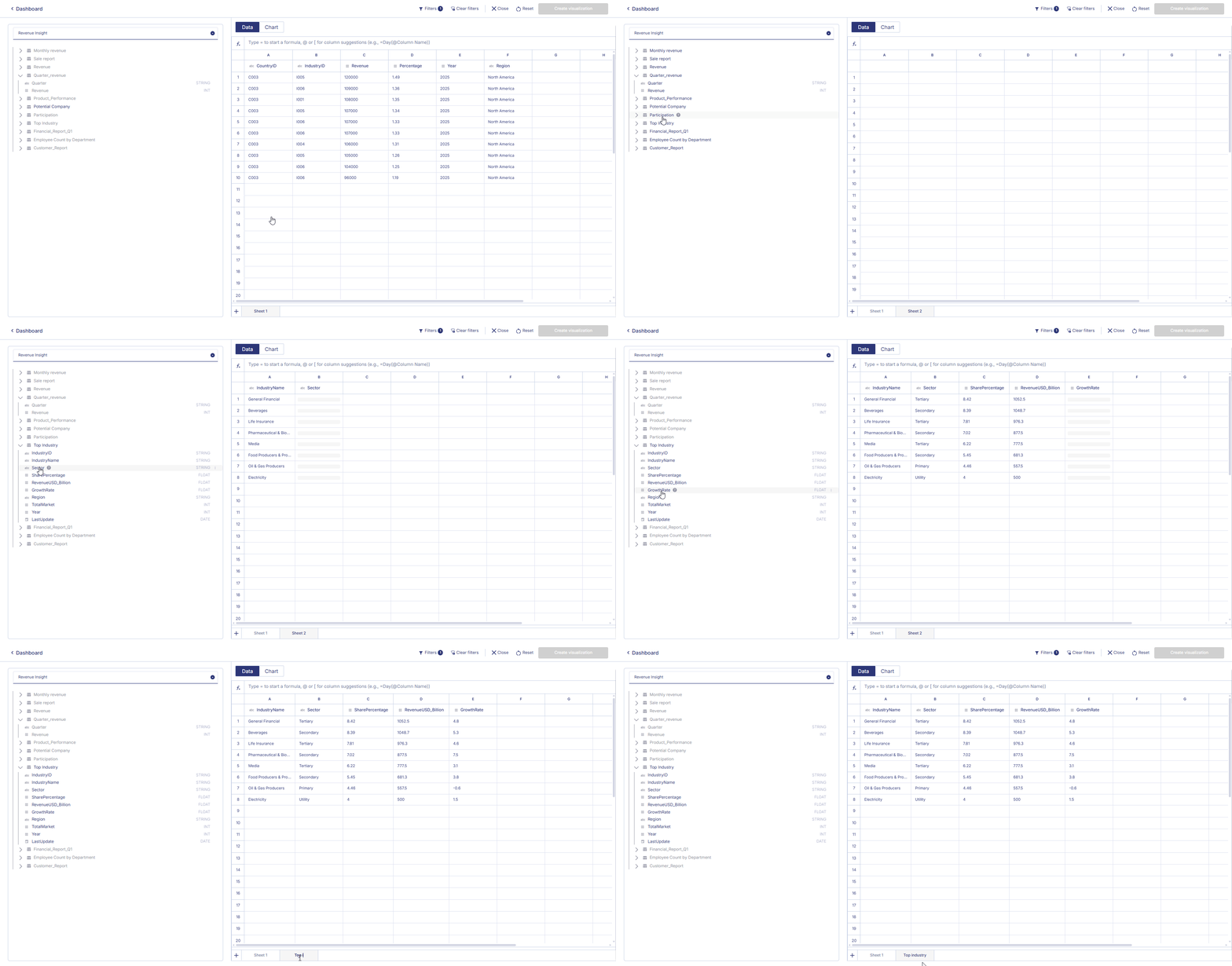
Workbooks can contain multiple datasheets, allowing you to organize, transform, or separate datasets within the same workbook.
Multiple sheets can also be used to support multiple charts in the same dashboard. Each chart can reference a different sheet depending on the data it needs.
Managing Sheets in a Workbook
- Create a new sheet: Click the “+” icon located at the bottom-left corner of the workbook.
- Rename a sheet: Click the sheet header you want to rename, then select Rename sheet from the menu.
- Delete a sheet: Click the sheet header you want to remove, then select Delete.
6.2 Renaming Column Header
- Click a column header.
- Select Rename column.
- Enter the new name.
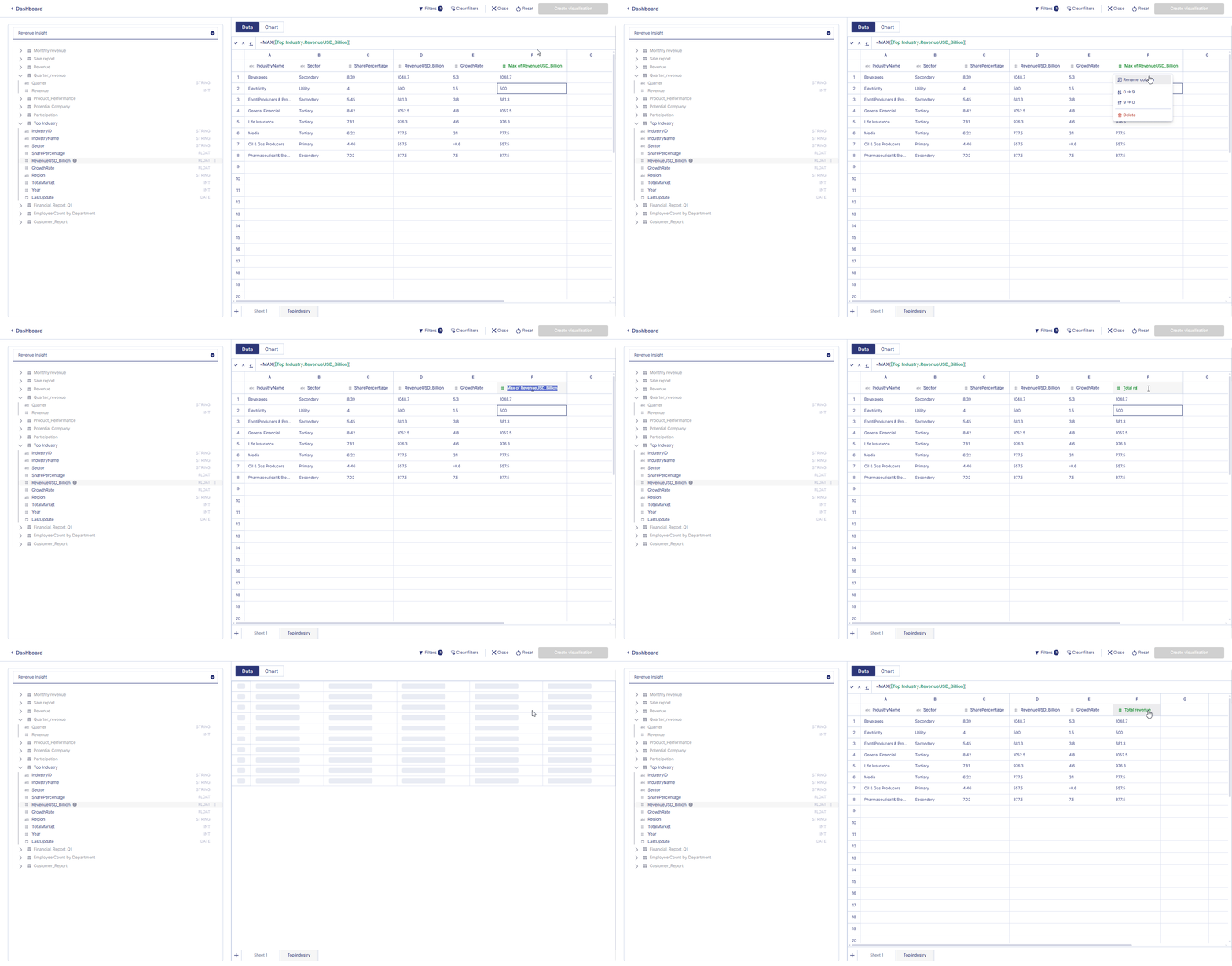
Useful for business-friendly labels.

6.3 Applying Filters
Filters limit your dataset to specific conditions.
- Click the filter icon on a column.
- Select a filter type:
- Equals / Not equal
- Contains / Starts with / Ends with
- Greater / Less than
- Date filters
- Enter the value → click Apply.
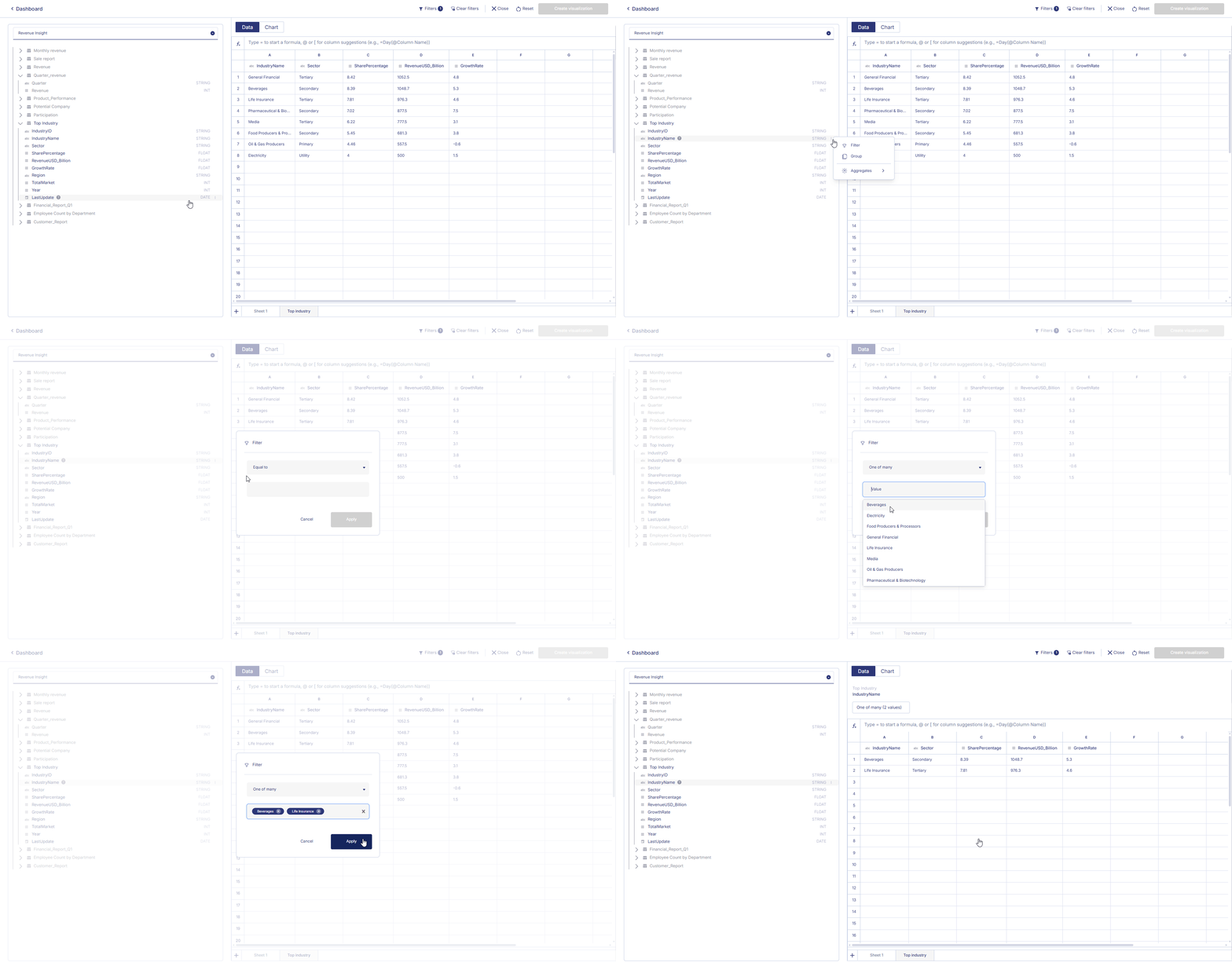
Filters update the datasheet instantly and apply to visualizations.

6.4 Grouping Data
Grouping organizes rows into summary buckets.
- Click the column header.
- Select Group by this column.
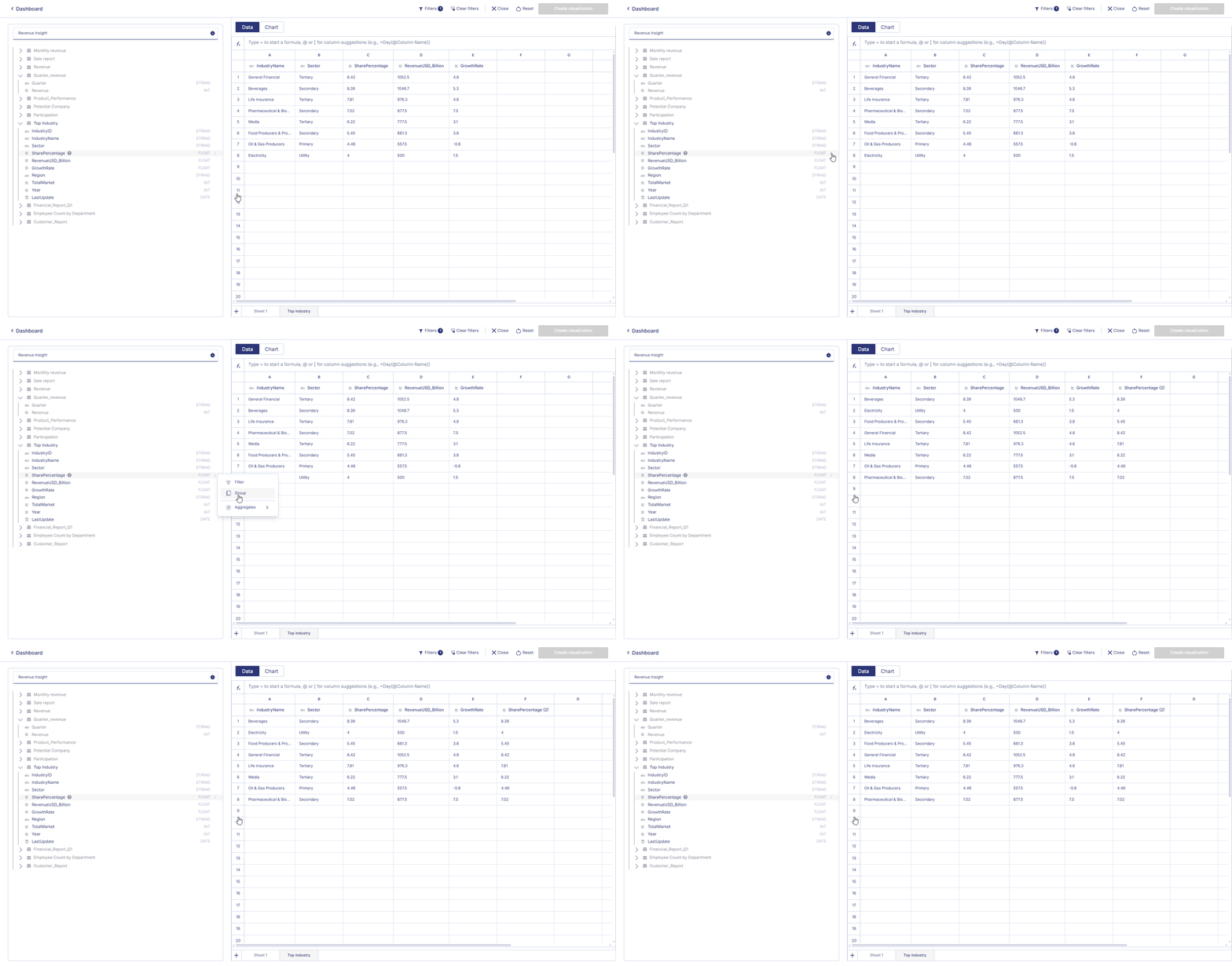
Multiple groupings are supported (e.g., Region + Category + Year).
Common uses: Heatmaps, Bar charts, Pivot tables,...

6.5 Aggregation
Aggregation reduces detailed rows into summarized values.
- Click the ⋮ menu on a numeric column.
- Choose an aggregation: Count, Sum, Avg, Min, Max
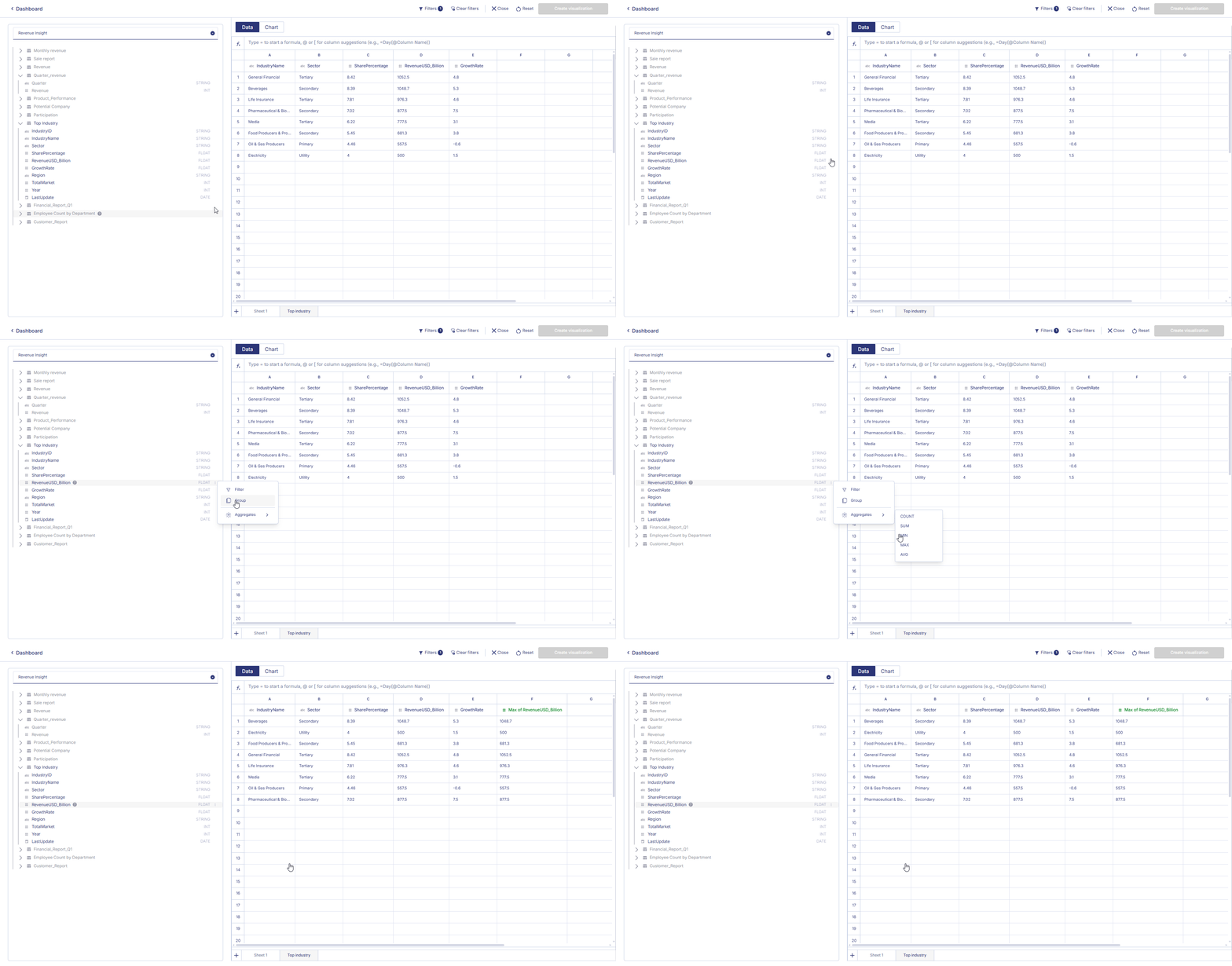
Results appear instantly.

6.6 Support Functions in Workbook
Workbooks support formulas for advanced data transformations.
Mathematical: ABS(), ROUND(), CEILING(), FLOOR(), POWER()
Text: CONCAT(), LOWER(), UPPER(), LEFT(), RIGHT()
Date/Time: DATE(), YEAR(), MONTH(), DAY(),...

Your workbook is now fully prepared for analysis and visualization.
After shaping your dataset, organizing multiple sheets, applying filters, and performing transformations, you can begin building charts directly on top of the workbook.